AI image generation
Create images from a prompt, a reference, or both.
ImageStyle is an AI image generator for moving from an idea to a usable visual. Start with a written direction, add a reference image when the selected model supports it, then choose the framing and output settings that fit the job.
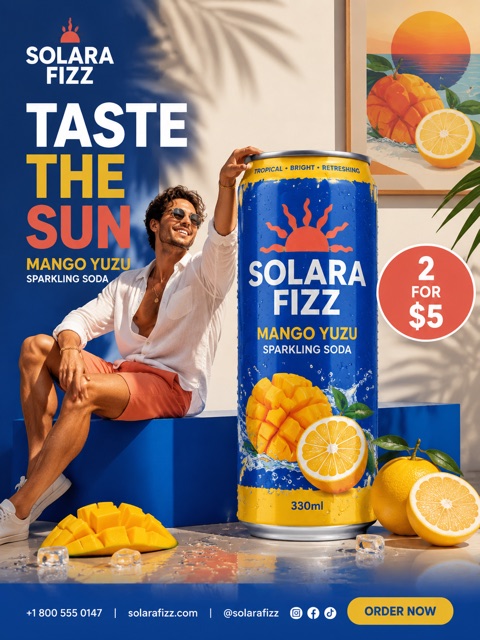
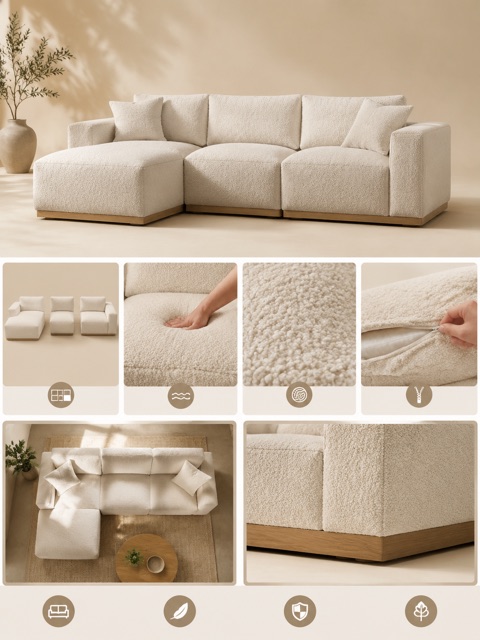
- Start with
- A prompt or supported reference image
- Create
- New image variations in a selected frame
- Control
- Model, aspect ratio, and output settings
Examples to inspect before you generate
Inspect different image directions before choosing a model, frame, and prompt structure.
Every card identifies whether it is a verified model-family example or a visual reference. Reference cards are not model benchmarks or before-and-after claims.
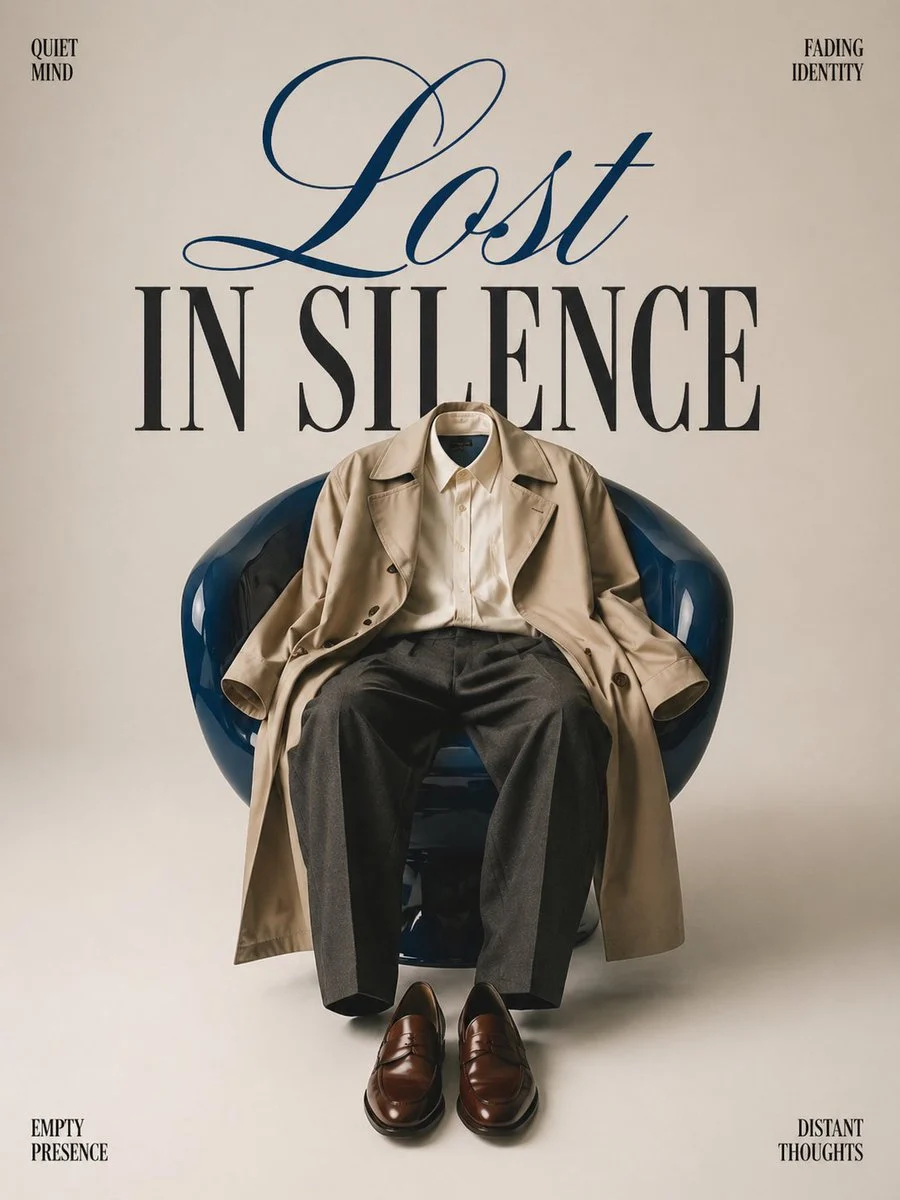
Poster composition
One central object, clear negative space, and a deliberate text hierarchy.
Verified model-family example
Verified GPT Image family example from the local ImageStyle prompt library.
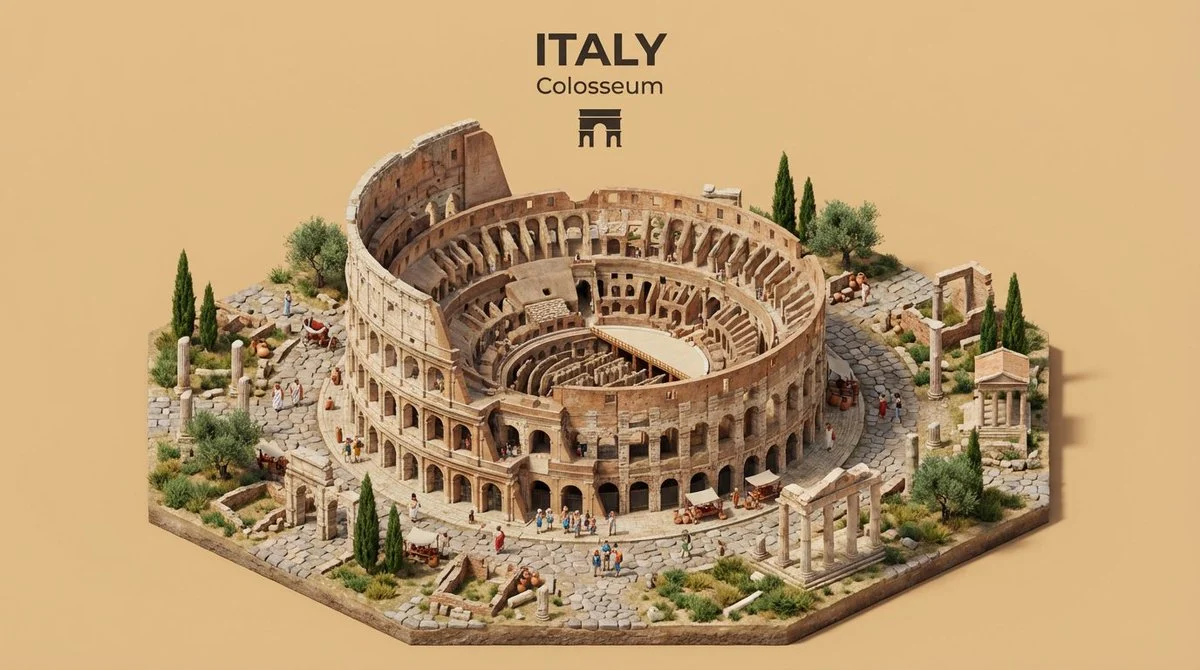
Illustrated place concept
Combine a place, its defining landmarks, and a clear viewing angle in one visual direction.
Verified model-family example
Verified Nano Banana family example from the local ImageStyle prompt library.
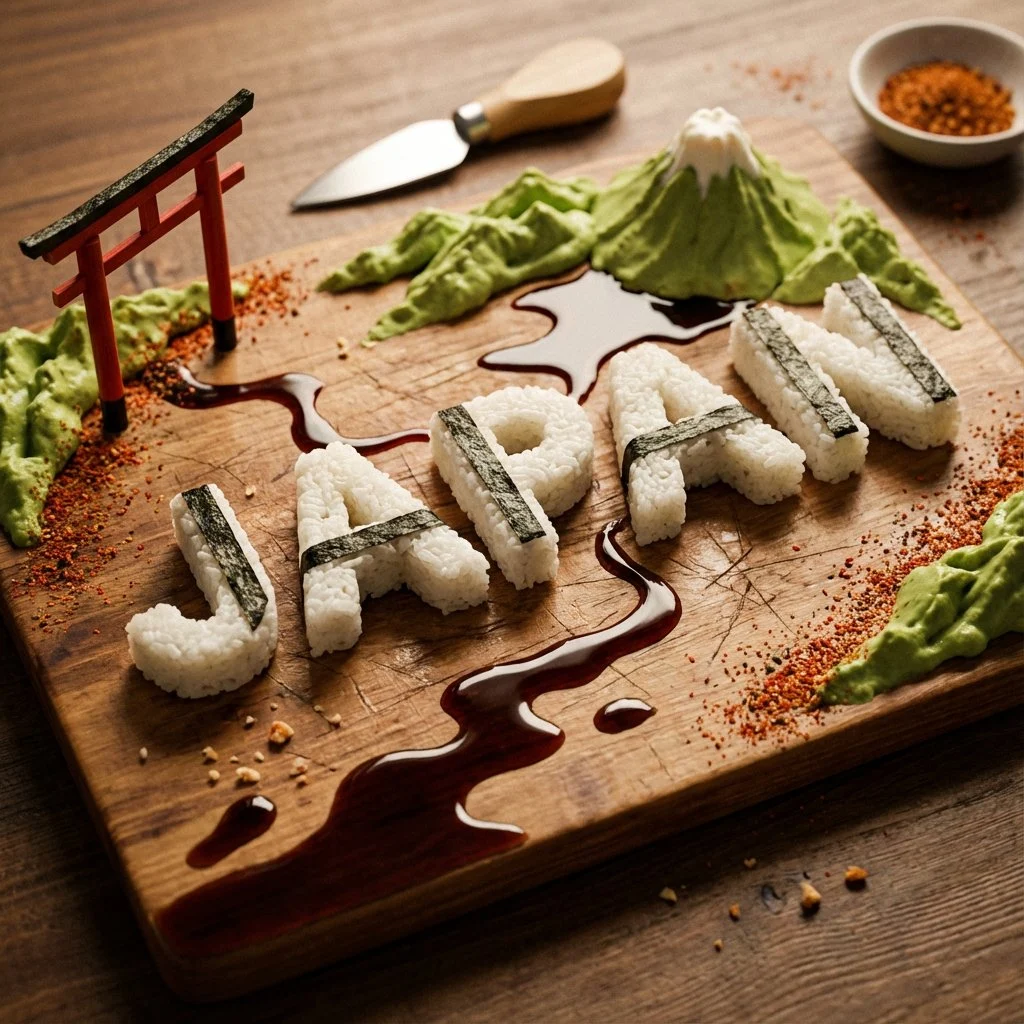
Concept-led object treatment
Give an abstract idea a material, a physical form, and a simple composition rule.
Verified model-family example
Verified GPT Image family example from the local ImageStyle prompt library.
What the image generator is built to help with
Text-to-image directions
Describe the subject, setting, composition, and visual mood you need, then turn that direction into a fresh image.
Reference-guided variations
When the selected model accepts reference images, use one to give the generation a visual starting point alongside your prompt.
Purposeful framing
Choose from the aspect-ratio and output options available for the model instead of designing around a single fixed canvas.
A practical AI image workflow
The workspace keeps the creative choices together so the prompt, reference material, model, and output settings can be adjusted in one place.
- 1
Describe the result you need
Write the visual direction in your own words, including the subject, composition, and the details that matter most.
- 2
Add a reference when it helps
Use a supported reference image when you need the generation to begin from a particular visual direction.
- 3
Select available output options
Choose a model, aspect ratio, and output setting that are available for the result you want to make.
- 4
Generate, inspect, and refine
Review the visible result, then adjust the direction or settings before creating another variation.
What to check before you publish a result
- Model capabilities vary
- Reference-image support, available aspect ratios, output tiers, and credit cost depend on the model and settings you select.
- Review visible details
- Generated images should be checked for product details, readable text, hands, brand marks, and any other element that must be accurate.
- Use publishable source material
- Only upload images and references that you are allowed to use in your intended project.
AI image generator FAQ
- What can I create with the AI image generator?
- You can create a new visual direction from text, or make a reference-guided variation when the selected model accepts reference images. The result is shaped by your prompt, the model, and the available output settings.
- Can I use the AI image generator for free?
- New accounts receive welcome credits for eligible 1K image generation. Higher-resolution image generation and video generation require purchased credits, and model costs vary.
- Can I use a reference image?
- Yes, on models that support reference images. The workspace shows the upload option and the model-specific limits when that capability is available.
- Do all image models offer the same settings?
- No. Supported aspect ratios, output tiers, reference-image limits, and credit cost vary by model. Choose the model first, then use the settings it makes available.
- Can I use the output for product or campaign work?
- You can create visuals for those workflows, but review the finished image before publishing. For product-specific work, use a supplied reference image and verify every detail that must remain accurate.
Updated:
Capability source: Current ImageStyle image-generation workspace.