Ecommerce listing images
White-background product images, ready for listing.
Upload a product image, identify the item to keep, and generate a centered ecommerce visual with a pure white background.

- Input
- A supplied product image
- Output
- Centered product on white
- Useful for
- Listings and catalog imagery
Use white space to make the product inspectable
The references clarify the intended catalog role. They do not claim that an unrelated image was transformed by this tool.
Every card identifies whether it is a verified model-family example or a visual reference. Reference cards are not model benchmarks or before-and-after claims.
Clean catalog frame
A centered product, clean edges, and a white field with no competing objects.
Reference direction, not a model output
Local ImageStyle visual reference. It is not presented as a model-specific result.

Product-first framing
Keep the product legible before adding a setting or campaign treatment.
Reference direction, not a model output
Local ImageStyle visual reference. It is not presented as a model-specific result.
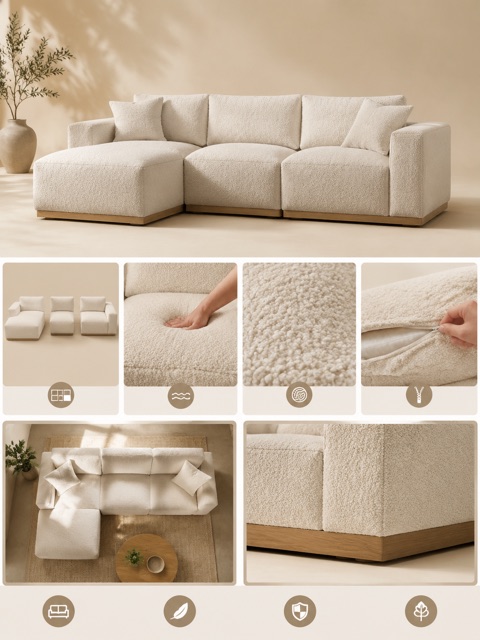
Product detail set
Give each image a job: overview, material, feature, or lifestyle context.
Reference direction, not a model output
Local ImageStyle visual reference. It is not presented as a model-specific result.
A white background is useful when the product needs to do all the talking.
This workflow is for a focused listing image, not a new product concept. Start from a real product reference and review the finished result before it reaches a storefront or catalog.
- Keep in view
- The selected product, its silhouette, proportions, materials, visible markings, texture, and hardware.
- Clear away
- The original scene, extra objects, people, clutter, and shadows that belong to removed objects.
Use it wherever the product needs to read first
Use the result when a product needs a calm, consistent visual role before shoppers move to detail or campaign imagery.
Catalog listings
Create uncluttered product imagery for product feeds and storefront catalogs.
Storefront product pages
Give the main product image a calm, consistent presentation before shoppers reach the detail images.
Asset cleanup
Use an existing product shot as the source when you need to remove the surrounding scene.
Prepare the source with the final frame in mind.
The workspace keeps the setup deliberately short: add the product reference, name the intended item when the image includes more than one object, then choose an available frame.
Upload the source product image
Choose the product image you want to turn into a clean listing visual.
Identify the item to keep
Optionally describe the intended item when the source contains more than one object.
Generate the listing-ready image
Create a centered product image with a pure white background and a subtle contact shadow.
Check the result before it becomes a listing asset.
The generator provides a visual starting point. The product owner still needs to verify every customer-facing detail.
| Check | What to confirm |
|---|---|
| Product | The full item is in frame and still looks like the supplied reference. |
| Edges | The silhouette, handles, caps, labels, and fine details remain readable. |
| Background | The original scene is gone and the background reads as clean white. |
| Framing | The product is centered with balanced margins for the chosen format. |
White background generator FAQ
The white-background workflow gives the product a single, focused visual role: clear presentation without the original scene clutter.
- What does the workflow keep?
- The generation prompt is designed to keep the selected product’s visible identity, silhouette, materials, colors, markings, texture, and hardware.
- What does it remove?
- The workflow asks the model to remove the original background, extra objects, people, text, packaging clutter, and shadows cast by removed objects.
- Can I choose an aspect ratio?
- Yes. The white-background tool exposes supported image aspect ratios before generation.