Image to image
Use a supported reference image to guide the next visual direction.
The image-to-image workflow starts with an image you are allowed to use and a written description of what should change or remain important. Choose a model that supports reference images, then review the new variation carefully before publication.

- Start with
- A supported reference image
- Direct with
- A written change or scene brief
- Review
- The new variation before use
Separate the approved source from the next visual role
These verified local examples separate the source cues that matter from the next composition or setting. They are not claimed transformations or before-and-after pairs.
Every card identifies whether it is a verified model-family example or a visual reference. Reference cards are not model benchmarks or before-and-after claims.

Subject and surface cues
Identify the source subject, surface, crop, and light cues that should guide the next direction.
Verified model-family example
Verified Nano Banana family example from the local ImageStyle prompt library.

Fixed visual anchors
Separate the cues that must stay stable from the framing or setting that can change next.
Verified model-family example
Verified Nano Banana family example from the local ImageStyle prompt library.
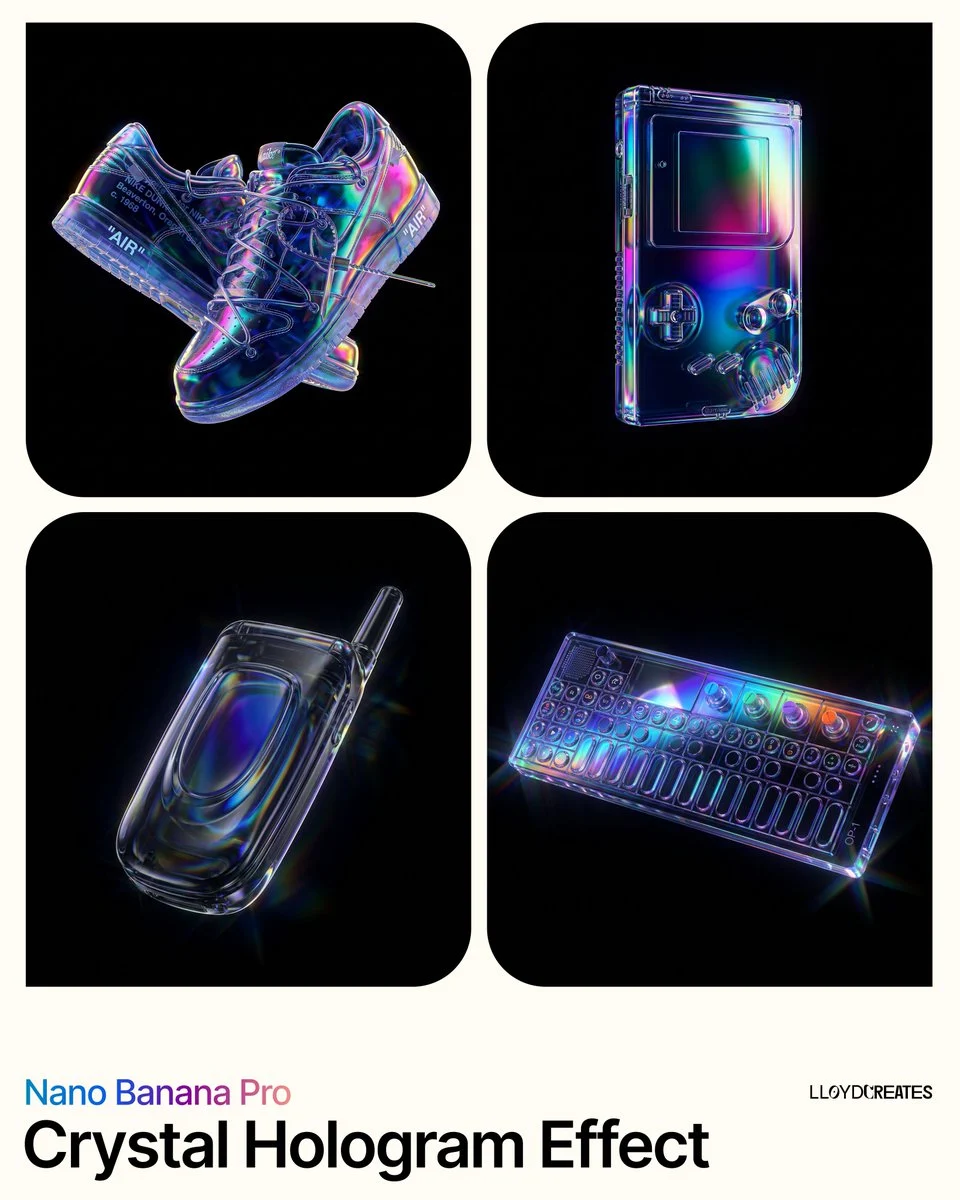
Material and silhouette cues
Use a reference to establish material, outline, and object relationship before changing the scene.
Verified model-family example
Verified Nano Banana family example from the local ImageStyle prompt library.
What image-to-image generation is useful for
A visual starting point
Use an approved image to establish the item, composition, or visual direction that the next generation should begin from.
A written change request
Describe the scene, treatment, framing, or new visual emphasis instead of expecting the source image to explain every decision.
A reviewed variation
Inspect the new result against the source when recognizable product details, text, proportions, or identity matter.
How to use an image-to-image generator
A reference image guides a compatible generation; it does not guarantee an exact copy. The prompt should explain the intended transformation and the result should be reviewed on its own merits.
- 1
Prepare a reference you can use
Choose an image you are allowed to upload and use in the intended project.
- 2
Select a model with reference support
Choose a model that accepts reference images, then review the upload and output options it makes available.
- 3
Describe the next visual direction
Write what should change, what should remain important, and the scene or composition you want to create.
- 4
Generate and compare carefully
Inspect the result before reuse, especially when accurate product details, readable text, or visual consistency are required.
Reference images guide, not guarantee
- Not every model accepts a reference image
- Reference-image support, limits, output tiers, and credit cost depend on the selected model and settings.
- Important details can still change
- Review material, labels, visible text, proportions, hands, faces, and any brand-specific element in the generated image.
- Only upload authorized source material
- Use reference images only when you have the right to upload and use them in the intended project.
Image to image generator FAQ
- What is an image-to-image generator?
- An image-to-image generator uses a supplied image as a visual starting point, then creates a new variation from a written direction. In ImageStyle, this is available on models that support reference images.
- Can I use any image as a reference?
- Use only images you are allowed to upload and reuse. The workspace shows reference-image controls only when the selected model supports them.
- Will the generated image keep every source detail?
- No. A reference image guides the result but does not guarantee exact preservation. Review all important visible details before publishing.
- What should I write with a reference image?
- Explain the intended change or new scene, the composition you need, and the source details that should remain important to the result.
Updated:
Capability source: Current ImageStyle image-generation workspace.