Visual iteration and image variations
Create AI image variations by changing one clear visual decision at a time.
An image variation is most useful when it tests a specific next direction. Start with a clear prompt or a supported reference image, decide what should change, then compare the new composition, scene, framing, or visual treatment in ImageStyle.
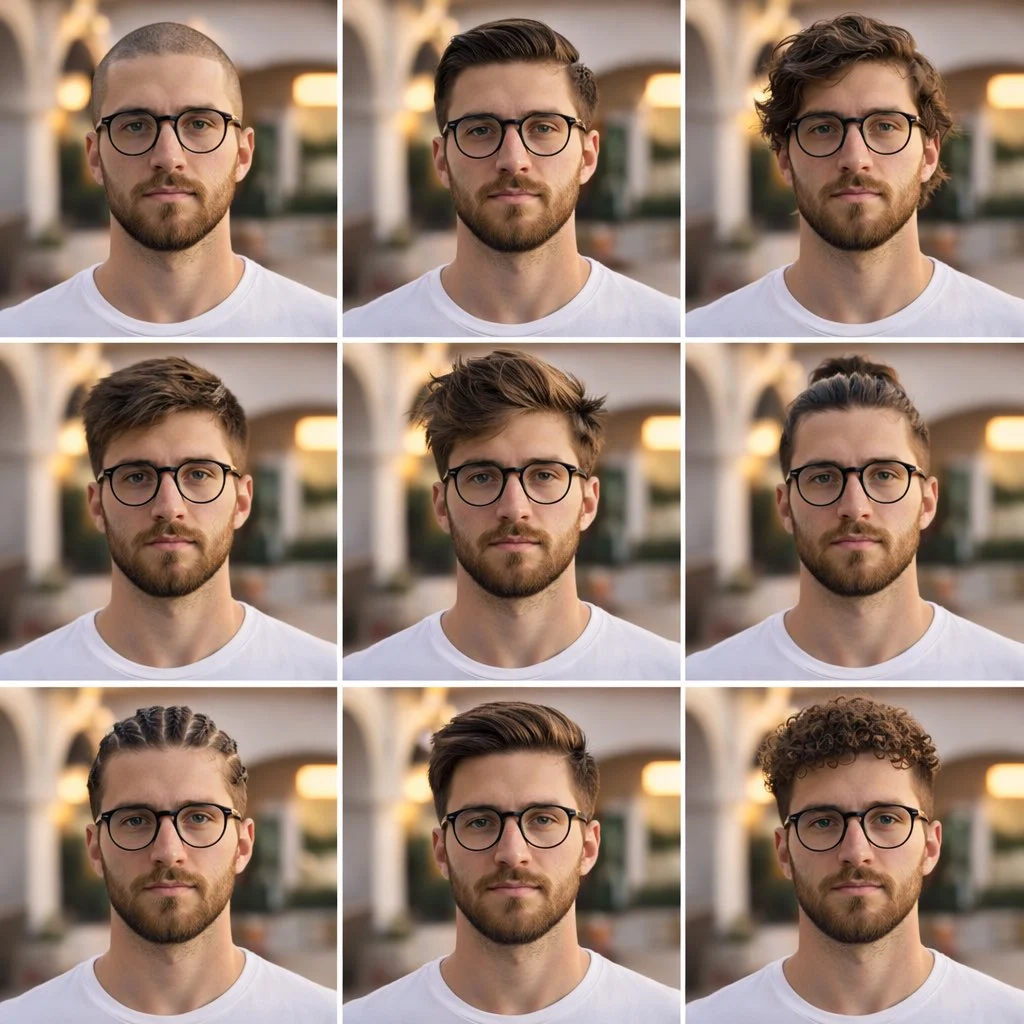
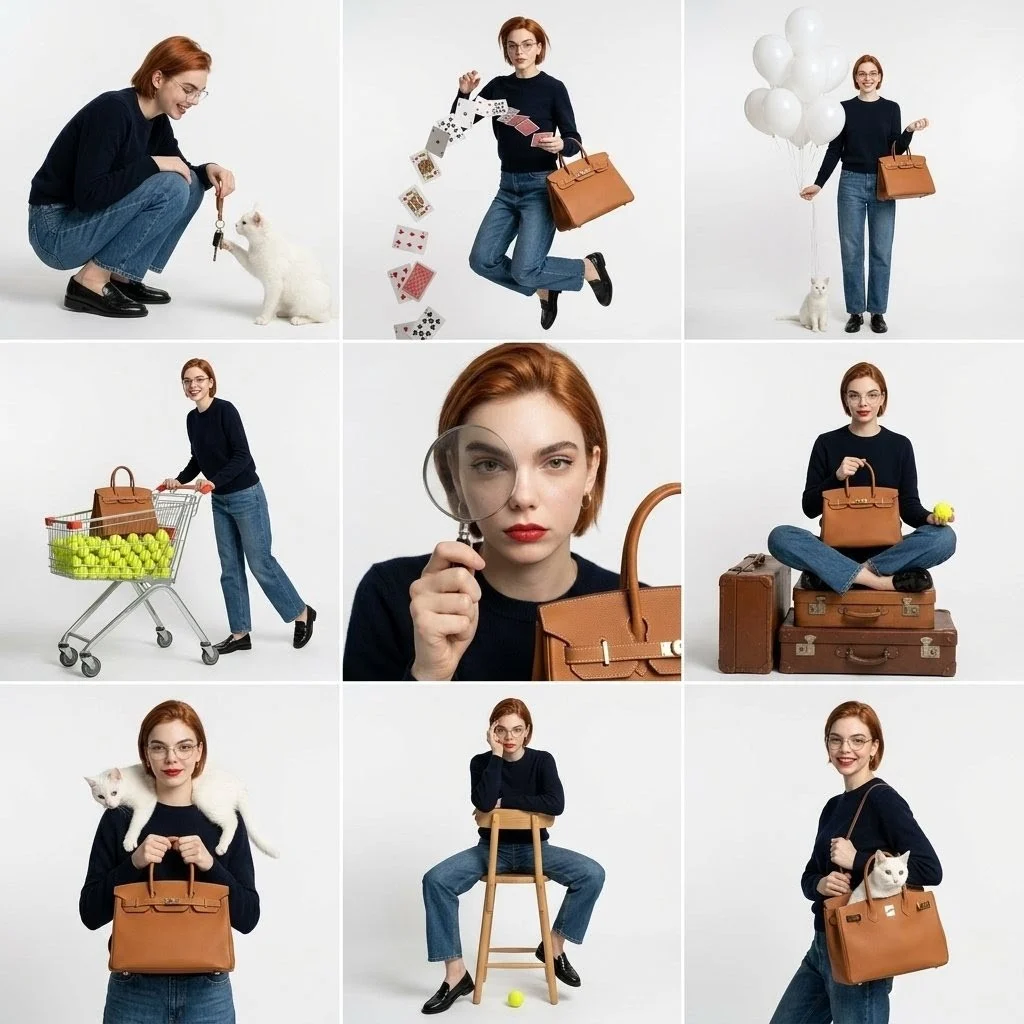
- Begin with
- A clear prompt or supported reference image
- Change
- One visual choice, such as scene or framing
- Keep
- Only the versions that suit the next use case
Compare distinct visual roles before the next version
These local references demonstrate distinct composition and image-role directions. They are not presented as a before-and-after sequence or a model benchmark.
Every card identifies whether it is a verified model-family example or a visual reference. Reference cards are not model benchmarks or before-and-after claims.
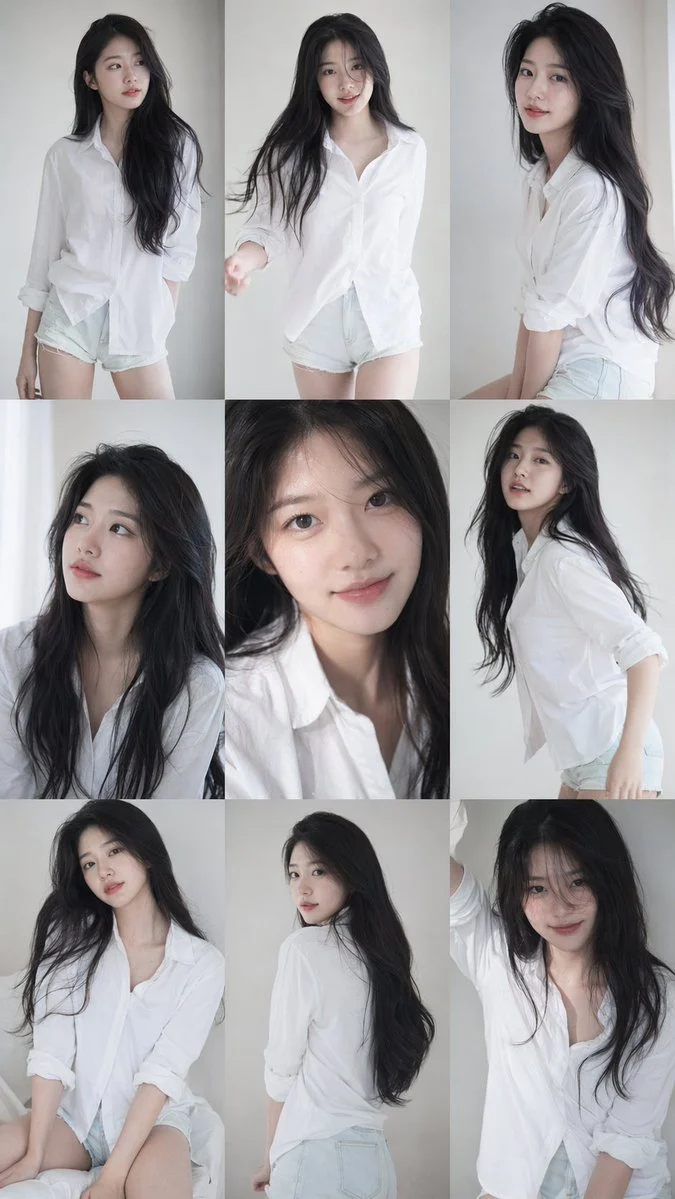
One controlled change
Change one visible choice at a time so the comparison remains useful.
Verified model-family example
Verified GPT Image family example from the local ImageStyle prompt library.
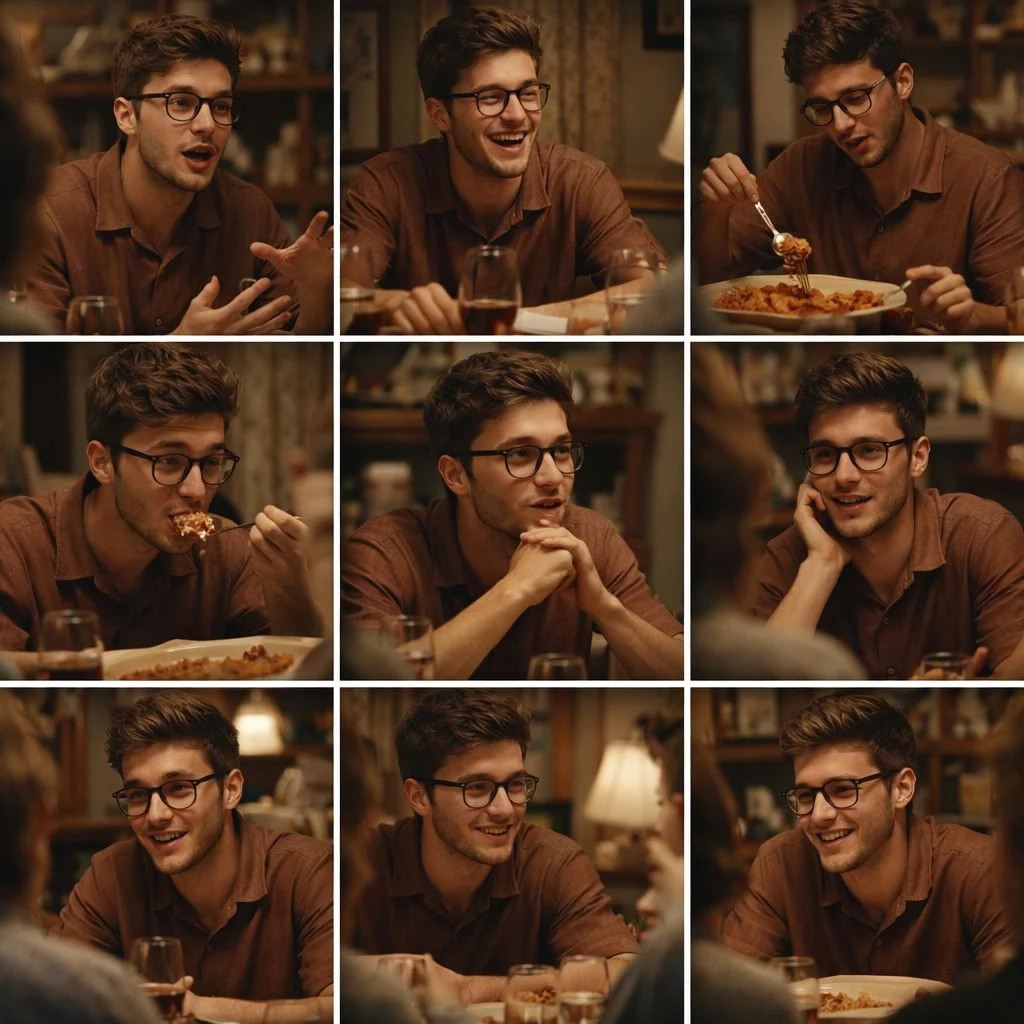
Sequence variation
Hold the subject stable while changing the moment, crop, or camera distance from frame to frame.
Verified model-family example
Verified GPT Image family example from the local ImageStyle prompt library.
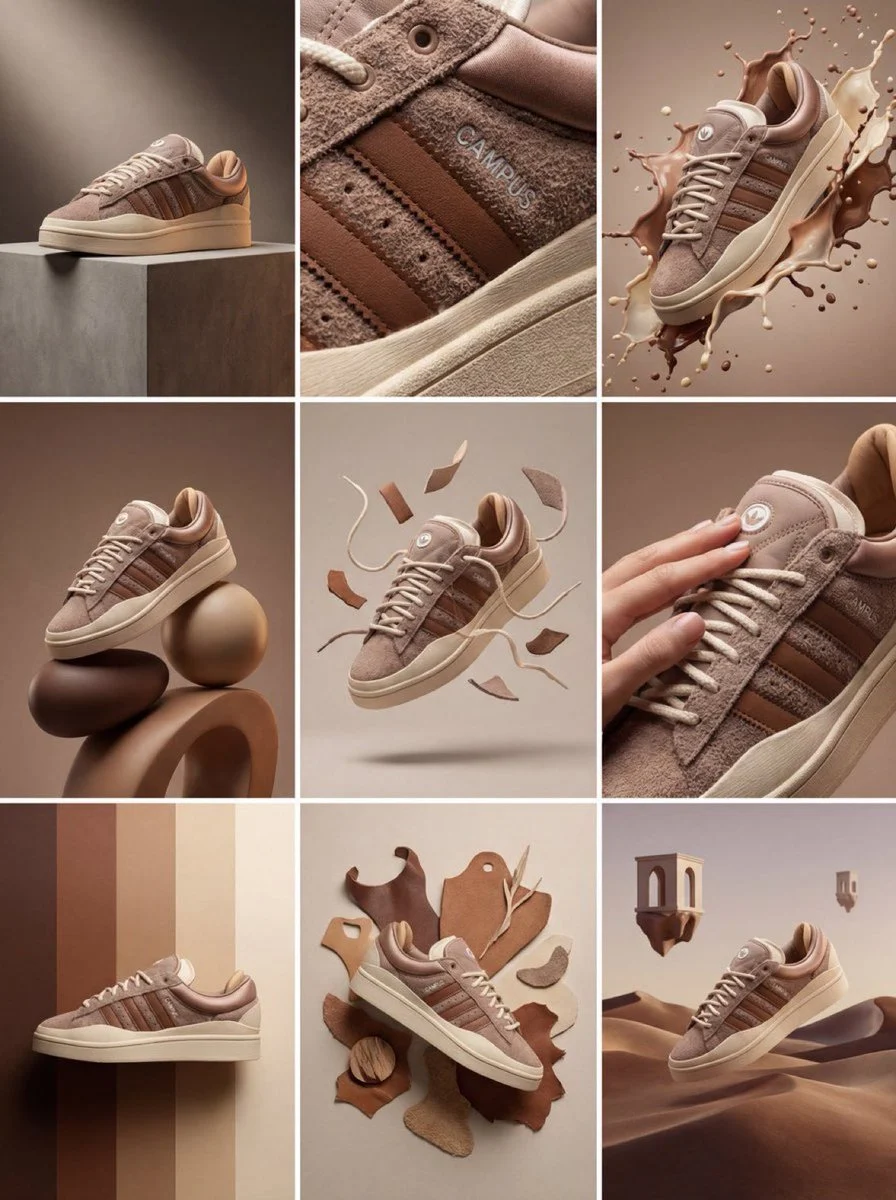
Set-level variation
Keep the product identity fixed while assigning each frame a different visual job.
Verified model-family example
Verified Nano Banana family example from the local ImageStyle prompt library.
What an image variation workflow helps you compare
A focused next version
Change a specific visual decision instead of asking one prompt to create every possible direction at once.
Different roles for the same idea
Use a new composition, format, scene treatment, or product context to explore how one direction can work in another image role.
A result you can inspect side by side
Review each new output for visual quality and usefulness before carrying the direction into another version or a real project.
How to create AI image variations
Variation works best as an intentional loop: name the starting direction, decide the next change, generate one result, and use the review to choose what to adjust next.
- 1
Define the starting direction
Begin with a clear prompt or, on a compatible model, an approved reference image that establishes the subject, product, or composition.
- 2
Choose one meaningful change
Decide whether the next version should change the setting, composition, framing, color treatment, or another specific visual choice.
- 3
Select the available image setup
Choose a model and the supported aspect ratio, output tier, and reference inputs that fit the next image role.
- 4
Generate and compare before continuing
Inspect the output, keep the versions that work, and use what you learned to make the next change deliberate rather than random.
A variation is a new image, not a locked copy
- Visual identity can change between versions
- Even with a similar direction or a reference image, a generated variation can change visible details. Review every version before reuse.
- Change one priority before adding another
- A focused comparison makes it easier to see whether the new scene, framing, treatment, or image role actually improved the result.
- Use approved source material
- When a variation uses a supplied reference image, only upload material that you are allowed to use in the intended project.
AI image variation generator FAQ
- What is an AI image variation generator?
- An AI image variation workflow creates a new visual version from a written direction or, on compatible models, a reference image. Each result should be reviewed as a new image.
- How do I make useful image variations?
- Keep a clear starting direction and change one important choice at a time, such as the setting, composition, framing, or visual treatment. Compare the result before making the next change.
- Can I use a reference image to create variations?
- Yes, when the selected model supports reference images. The source image guides the starting direction, while your prompt should explain the intended change.
- Will every variation keep the same product or visual details?
- No. Generated variations can change visible details. Check product features, labels, text, materials, proportions, and any other element that matters before use.
Updated:
Capability source: Current ImageStyle image-generation workspace.