Generate AI images
Generate AI images from the visual direction you already have.
ImageStyle gives you one place to turn a visual brief into an image, compare a new variation, and keep refining. Write the outcome you need instead of a vague style label, then use the selected model’s available settings to shape the result.
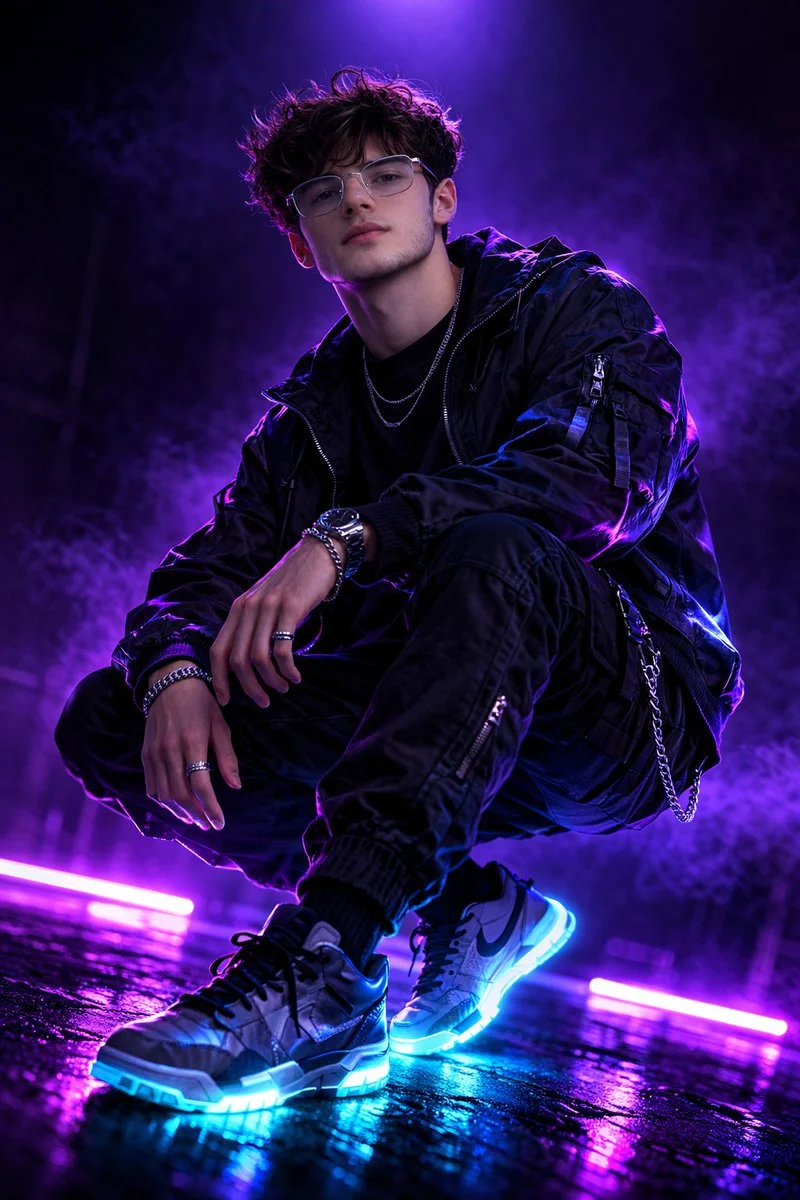
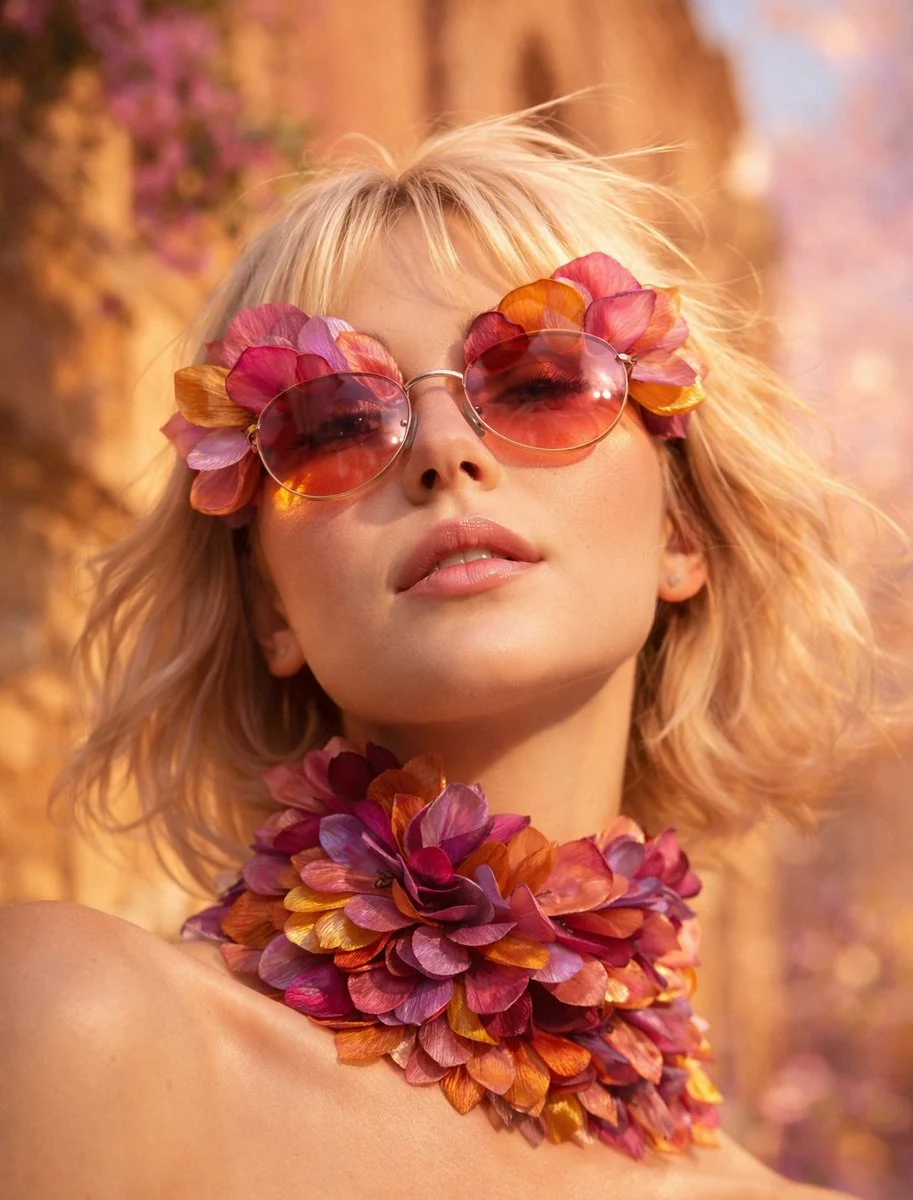
- Describe
- Subject, scene, and composition
- Choose
- A model and available output settings
- Then
- Inspect and refine each variation
Choose the image role before you generate
These verified local examples distinguish a product composition, a coordinated campaign set, and an explainer visual so this page uses its own media set.
Every card identifies whether it is a verified model-family example or a visual reference. Reference cards are not model benchmarks or before-and-after claims.
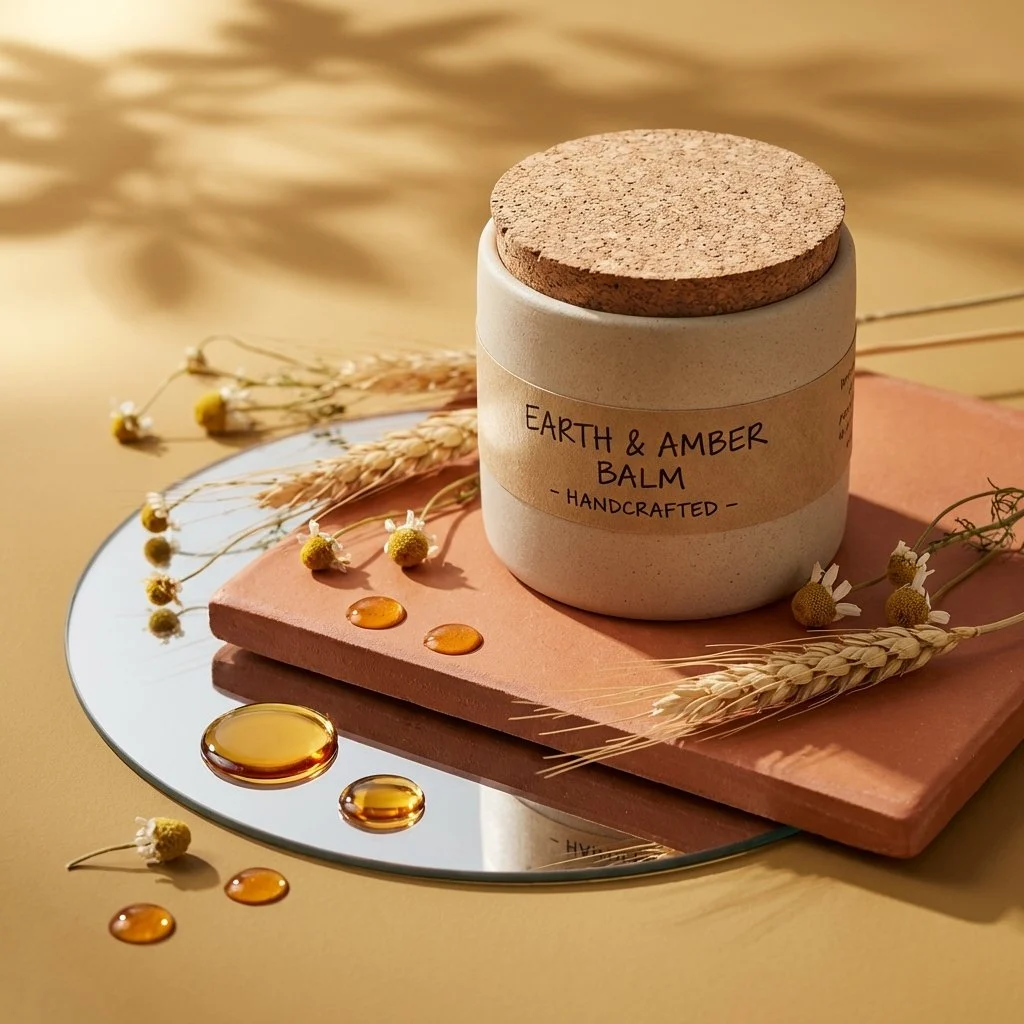
Focused product composition
Define the hero object, surface, light direction, and the supporting details around it.
Verified model-family example
Verified Nano Banana family example from the local ImageStyle prompt library.
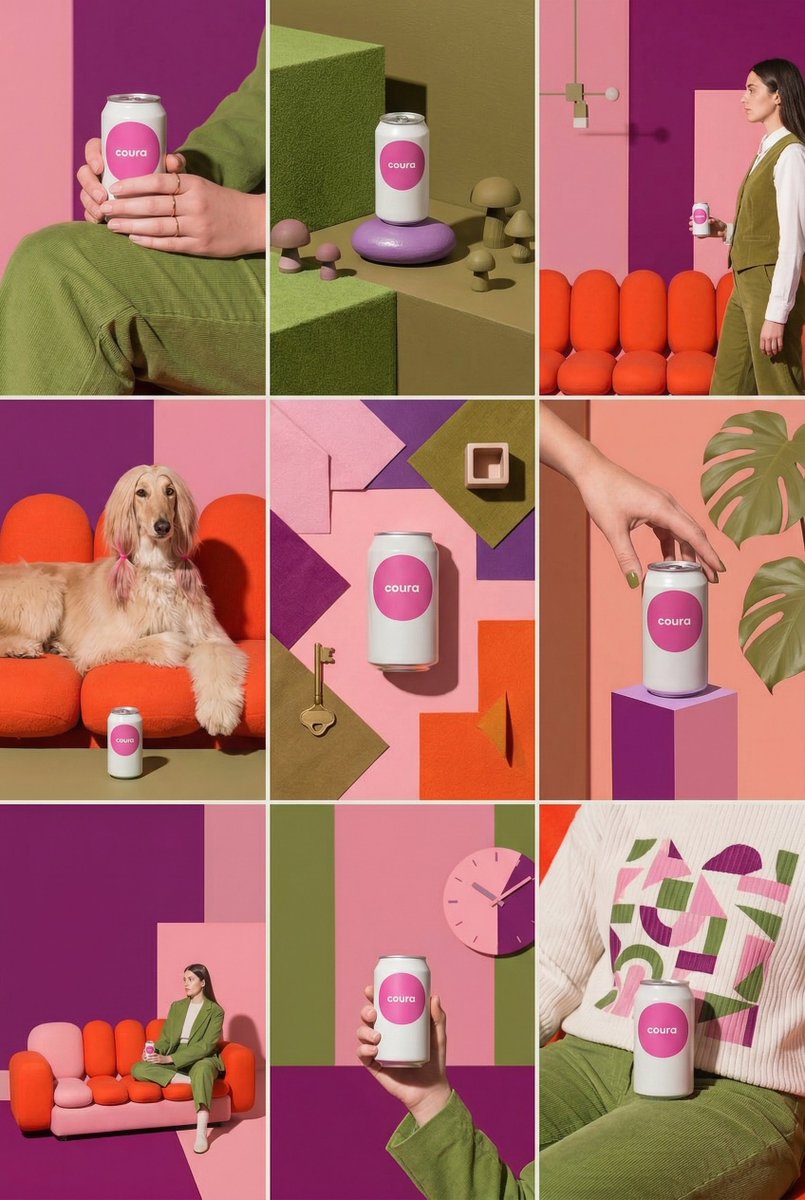
Cohesive campaign set
Give a series one visual system, then vary the setting and crop with a purpose.
Verified model-family example
Verified Nano Banana family example from the local ImageStyle prompt library.
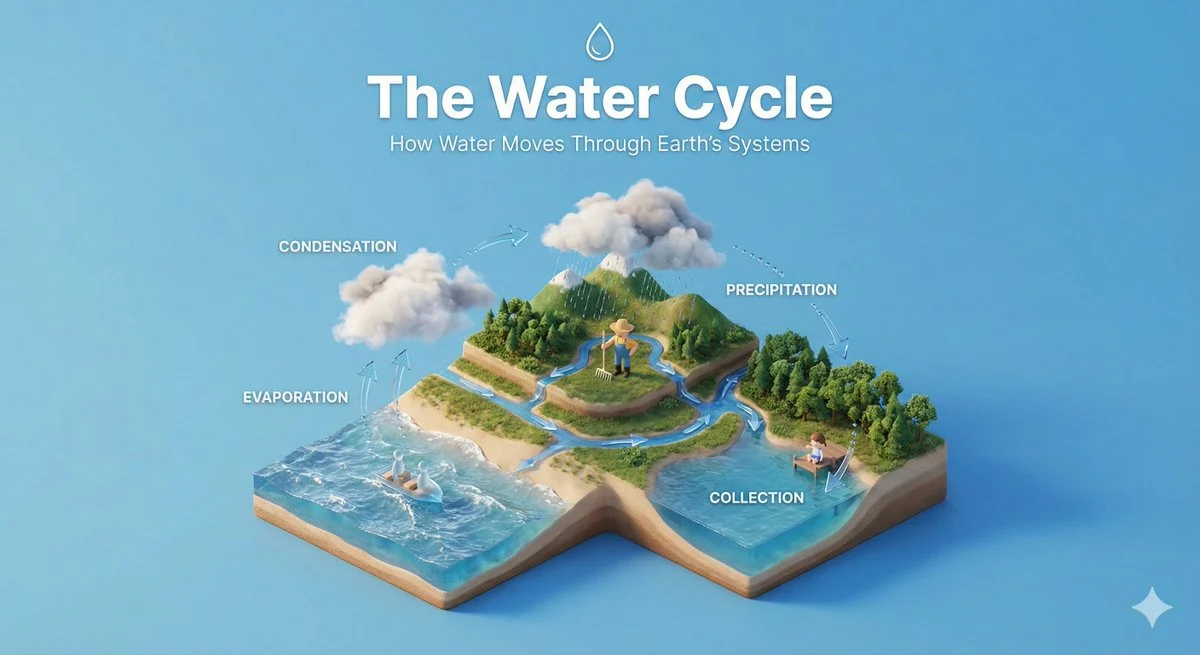
Clear explainer visual
Make the main process readable first, then use labels and supporting objects to clarify it.
Verified model-family example
Verified Nano Banana family example from the local ImageStyle prompt library.
A practical way to generate AI images
Start with the finished use case
Write whether the image is for a campaign, product page, concept, or social post so the composition has a clear job.
Make the visual hierarchy explicit
State the subject, the setting, and the most important detail instead of asking one prompt to be everything at once.
Create another variation when needed
Change the visual direction or available settings after reviewing the visible output, then generate the next version.
Generate AI images in four practical steps
Good image generation begins with a concrete outcome. The prompt should explain what the image needs to communicate, not only name a style.
- 1
Define the image role
Decide whether you need a concept visual, campaign composition, product scene, or another clear image role.
- 2
Write the visual brief
Describe the subject, setting, composition, mood, and the details that must remain visible.
- 3
Select available settings
Choose the model, aspect ratio, and output options that are available for the intended result.
- 4
Review before reuse
Inspect the result, update the brief or settings if needed, and verify critical details before publication.
Keep the generated result useful
- Specific prompts make review easier
- A clear visual brief gives you a more concrete result to inspect and refine than a broad style request alone.
- Outputs are not a source of record
- Verify product labels, claims, text, and other facts independently before using an image in customer-facing material.
- Available output controls differ by model
- Select the model first, then use the aspect ratios, reference support, and output tiers it makes available.
Generate AI images FAQ
- How do I generate AI images from a prompt?
- Open the ImageStyle workspace, describe the visual result you need, select the available model and output settings, then generate and inspect the result.
- What should I write when I generate AI images?
- Include the subject, setting, composition, visual mood, and any detail that must appear clearly in the final image.
- Can I generate a set of related image variations?
- You can create new variations by refining the visual brief or selected settings. Review each visible output before treating it as part of a coordinated set.
- Can I add a reference image?
- Yes, when the selected model supports reference-image input. Use the image-to-image workflow when the supplied image should guide the next result.
Updated:
Capability source: Current ImageStyle image-generation workspace.