High-resolution image generation
Create a 4K AI image when the finished visual needs closer inspection.
Use a compatible image model and output setup when the project needs a higher-resolution result. Start with a focused visual brief, choose 4K where the selected model makes it available, then inspect the visible details before delivery.
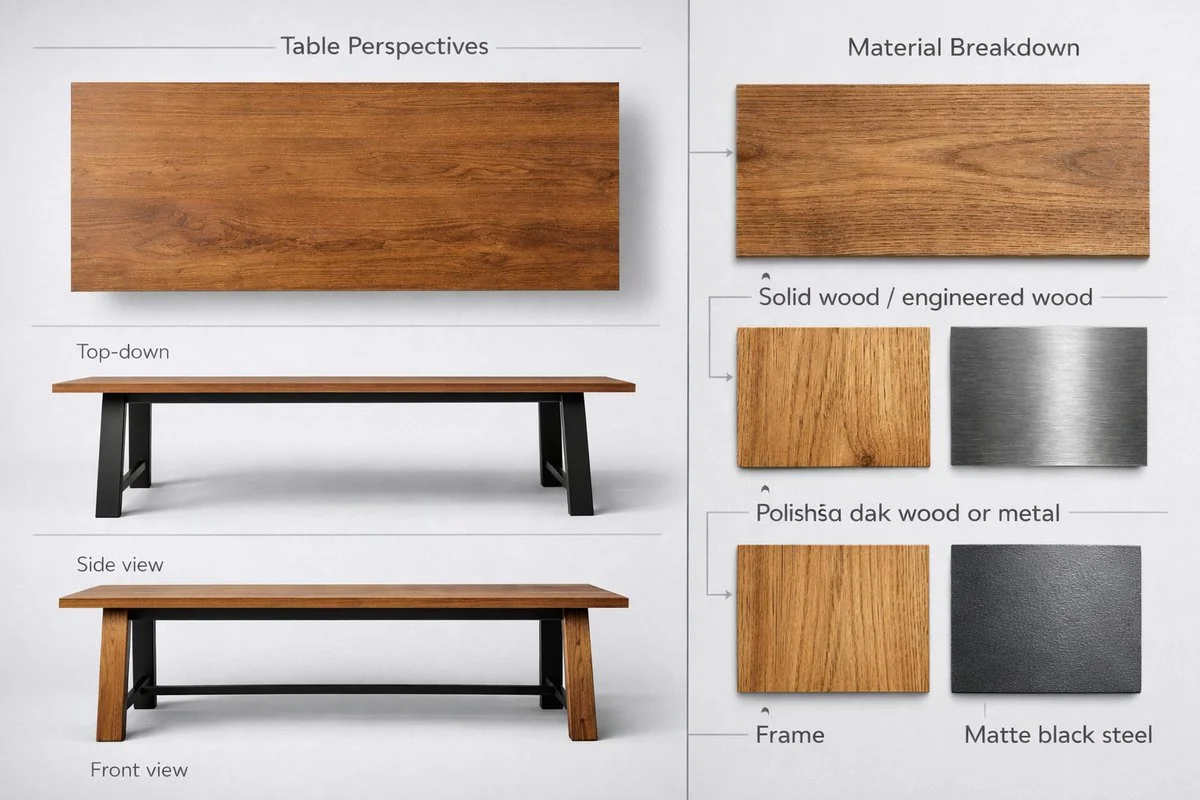
- Available on
- Compatible models and image setups
- Choose for
- Closer detail review and larger visual use
- Still required
- A focused prompt and final image review
Plan for details that need closer review
These verified local examples illustrate the kinds of surface, material, and layer details that benefit from closer review. They are not presented as 4K model outputs.
Every card identifies whether it is a verified model-family example or a visual reference. Reference cards are not model benchmarks or before-and-after claims.
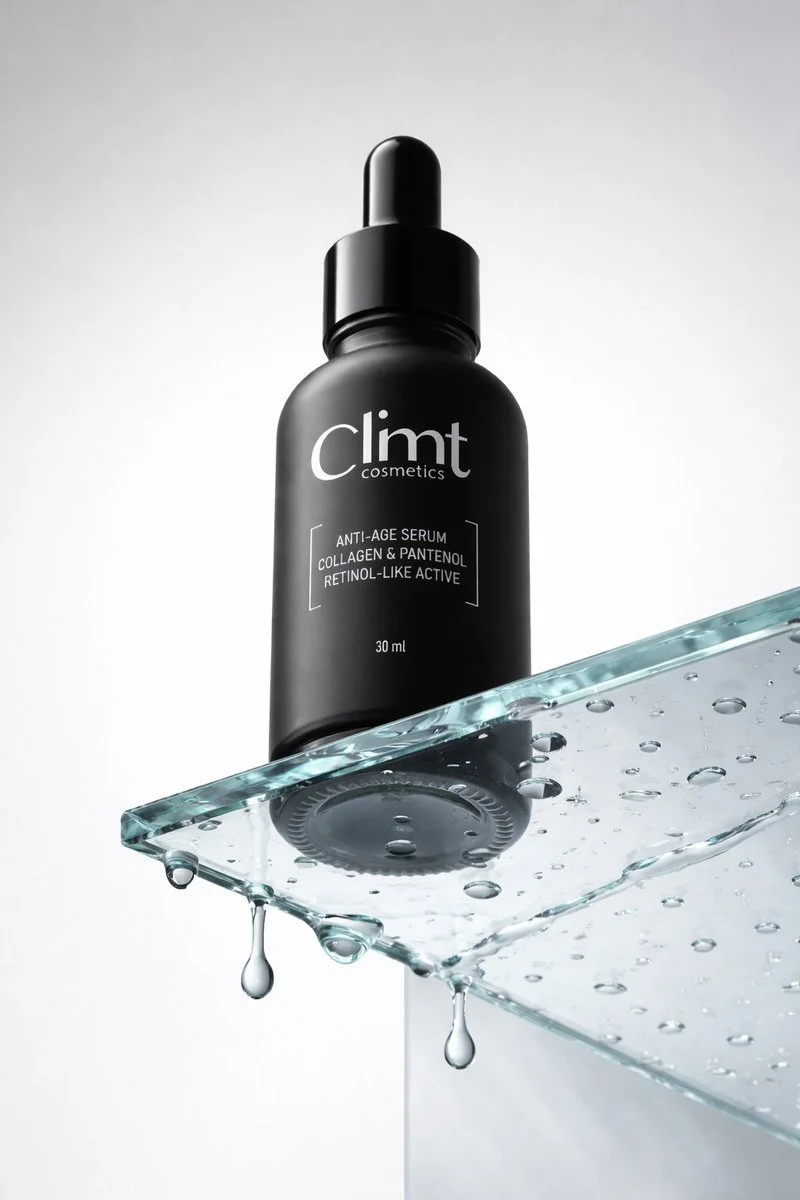
Surface and edge detail
Use detail-sensitive work to inspect reflections, edge transitions, labels, and small defects.
Verified model-family example
Verified GPT Image family example from the local ImageStyle prompt library.

Material differentiation
Choose a closer-review setup when material boundaries and small surface changes matter.
Verified model-family example
Verified Nano Banana family example from the local ImageStyle prompt library.
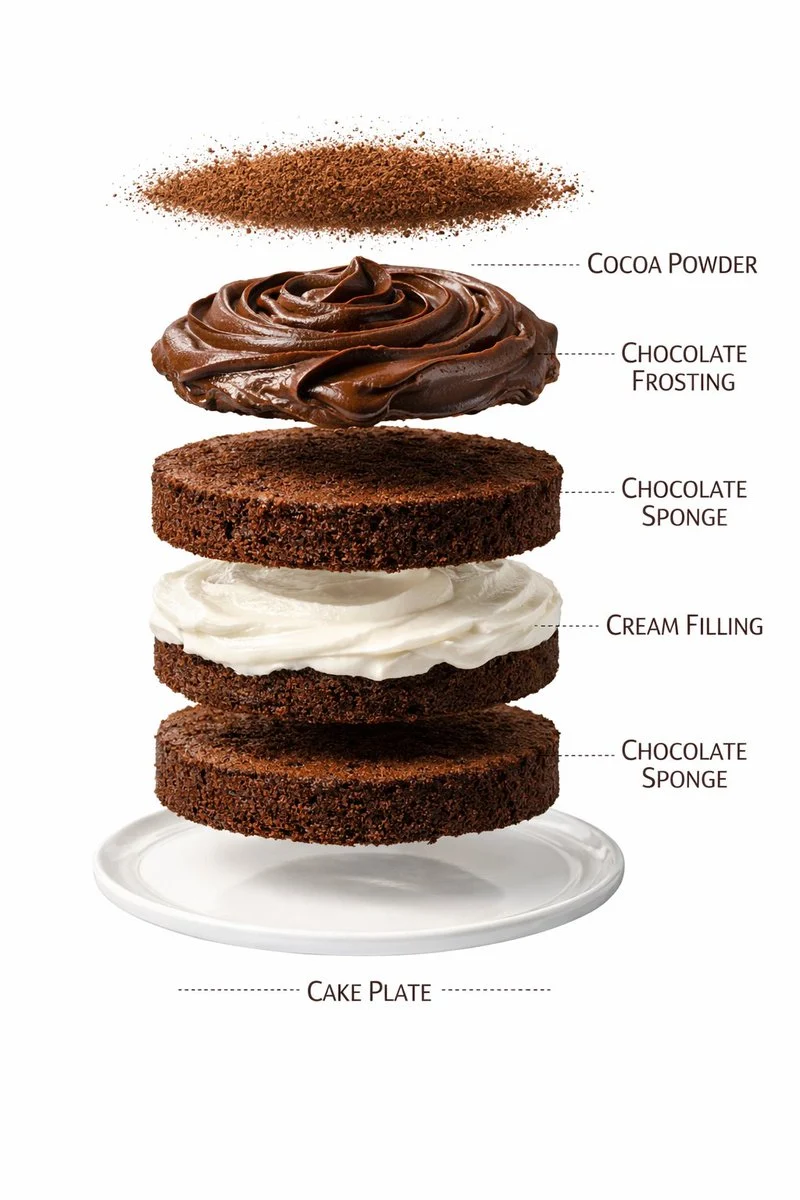
Visible layer detail
Plan higher-detail output for work where small layers, textures, and boundaries need inspection.
Verified model-family example
Verified Nano Banana family example from the local ImageStyle prompt library.
What a 4K image workflow helps you prepare for
More inspectable visual detail
Use a higher-resolution option when the finished composition, material treatment, or image role needs to be examined more closely.
A model-specific output choice
Select the image model first, then use 4K only when that model and the current input setup support it.
A deliberate final review
Higher resolution can make visual issues easier to inspect, but it does not make text, product claims, or brand details automatically accurate.
How to create a 4K AI image
Resolution is one part of the image decision. The prompt, selected model, source material, framing, and final review still determine whether the result is useful for the intended job.
- 1
Define the final image role
Decide why the image needs a higher-resolution result, such as a detailed product visual, a larger campaign composition, or closer internal review.
- 2
Choose a compatible model and setup
Open the image workspace, select a model, and check whether 4K is available for the current prompt-only or reference-guided setup.
- 3
Write a focused visual brief
State the subject, composition, materials, light, and key details that need to be visible. Do not rely on resolution to fill in an unclear direction.
- 4
Inspect before delivery
Review the completed result for detail quality, readable text, product accuracy, and any element that needs to be reliable at the final viewing size.
Higher resolution does not remove the need to review
- 4K is not available on every setup
- The available output tiers depend on the selected model. Some models or reference-image paths may offer a different set of resolution options.
- More pixels do not verify facts
- Inspect labels, copy, logos, proportions, materials, and product claims independently before using an image in customer-facing work.
- High-resolution tasks can use more credits
- Review the displayed credit cost before generating. The cost depends on the selected model, output tier, and supported input setup.
4K AI image generator FAQ
- Can ImageStyle generate 4K AI images?
- Yes, on compatible image models and supported setups. Select the model first, then check the resolution options available in the image workspace.
- Do all image models support 4K?
- No. Resolution support varies by model and can also differ when a reference image is attached. The workspace only shows supported choices for the active setup.
- Does 4K make generated text and product details accurate?
- No. Higher resolution can make the output easier to inspect, but important text, labels, logos, proportions, and claims still need manual review.
- Can I use a reference image for a high-resolution result?
- That depends on the selected model. Check the current model controls after adding a reference image because compatible resolution options can change.
Updated:
Capability source: Current ImageStyle image-generation workspace.