Photo to acrylic painting
Turn a photo into a bold acrylic painting.
Upload a photo and use the reference-guided preset to rebuild it with opaque layered strokes and saturated pigment. The preset keeps the subject readable while the workspace keeps color and texture editable.
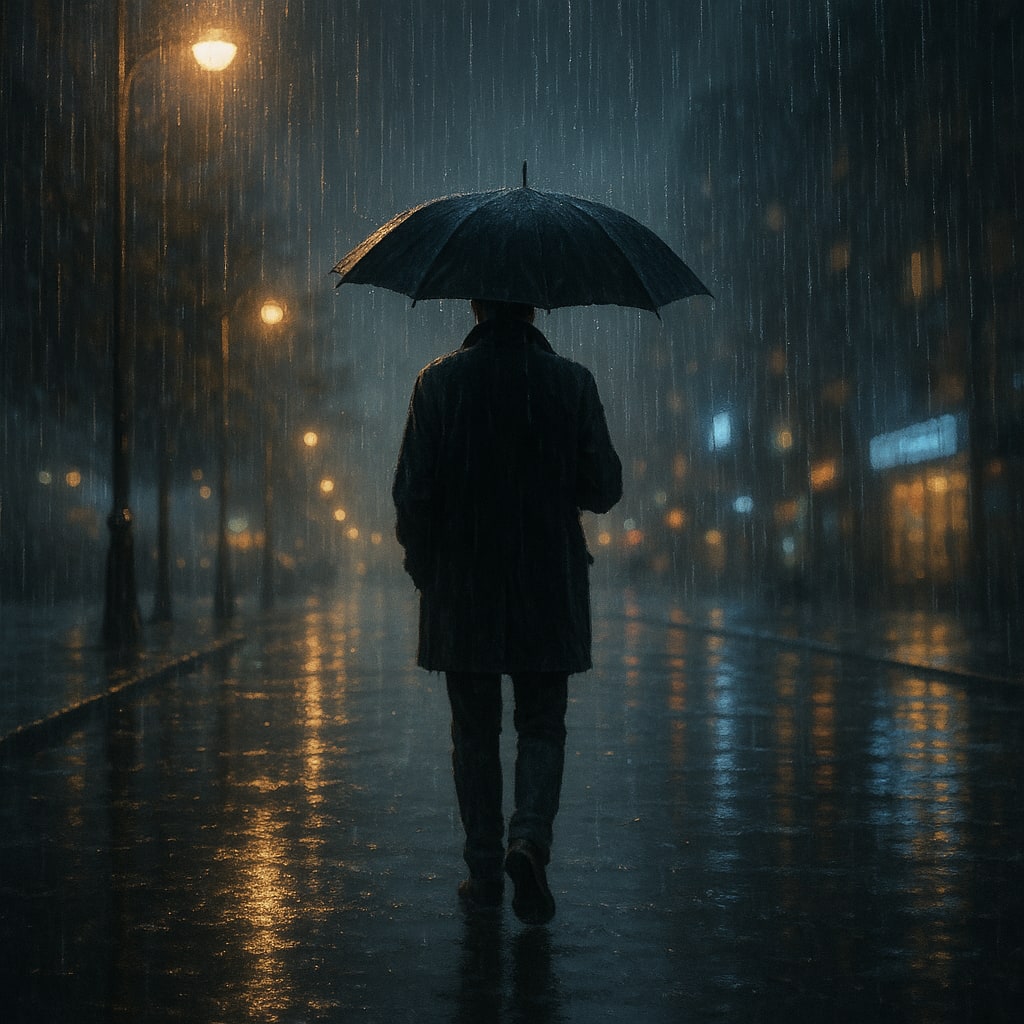
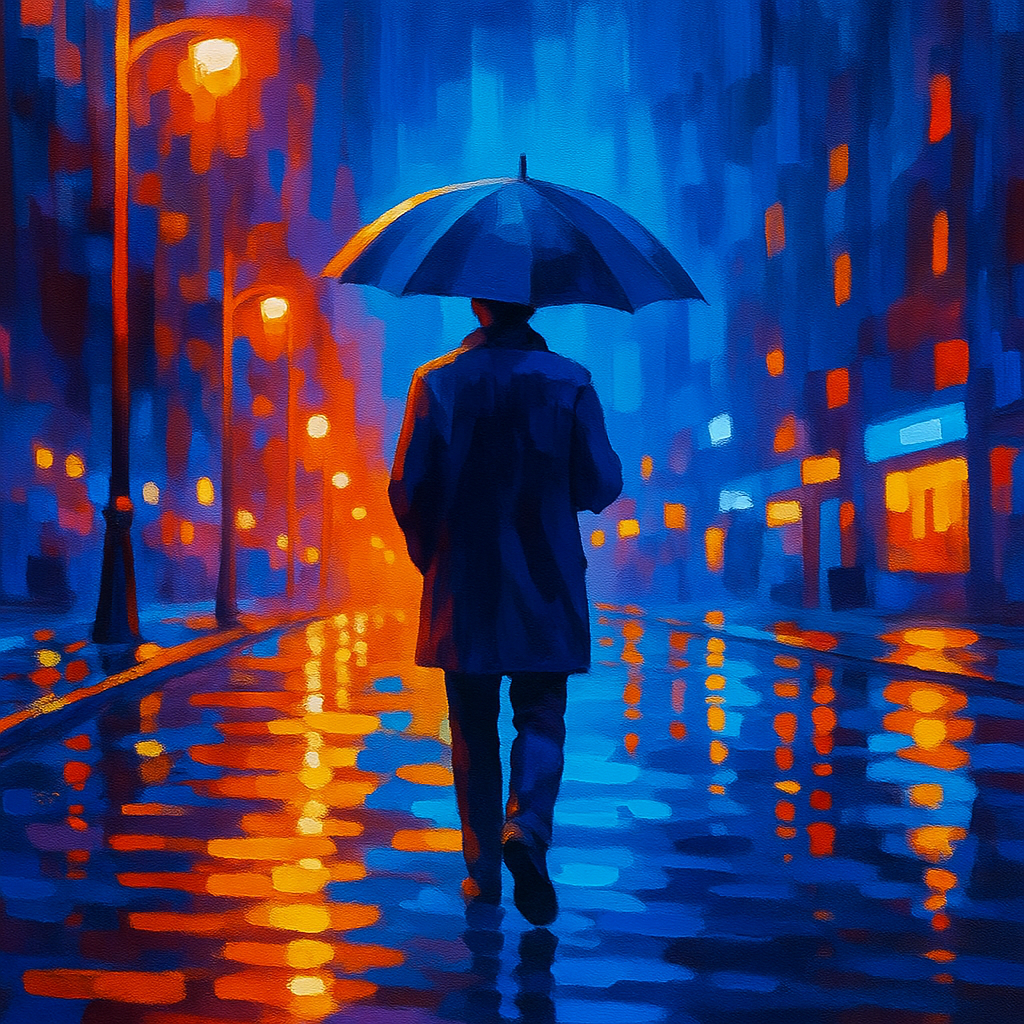
- Input
- One clear photo
- Output
- Opaque acrylic-style painting
- Best for
- Portraits, pets, and bold wall art
Original photo / Acrylic painting
See the opaque strokes before you generate
Drag the divider to compare the source photo with an acrylic painting built from opaque layered color.
Original photoAcrylic paintingA focused photo-to-acrylic workflow
Keep the colors bold
The preset asks for saturated pigment and crisp color blocks while preserving the source palette relationships.
Choose knife or brush texture
Edit the prompt for smoother blended strokes or rougher palette-knife ridges.
Compare against the source
Use the reference-image comparison to check likeness and framing before downloading.
How to turn a photo into an acrylic painting
The preset supplies the acrylic direction while the ImageStyle workspace keeps the prompt and output settings editable.
- 1
Upload one clear photo
Subjects with readable shapes and color contrast convert into bold paint passages more cleanly.
- 2
Review the acrylic prompt
The opaque-layer direction is prefilled. Keep it or specify brush, knife, or mixed texture.
- 3
Generate and compare
Inspect the painting beside the original photo, then refine or download the artwork.
What to inspect in the generated painting
- Fine detail becomes paint
- Tiny text, jewelry, and thin strands simplify into brushwork. Check faces at full size.
- It is a digital artwork
- The output is a painted-style image, not a physical canvas. Print it yourself if you want wall art.
- Use source material you can share
- Only upload photos and references that you are allowed to use for the intended project.
Photo to acrylic painting FAQ
- How is acrylic different from oil painting?
- The acrylic preset favors opaque, crisp color blocks and faster-looking strokes, while the oil-painting preset builds layered, blended brushwork with canvas grain.
- Do I need to write a prompt?
- No. The acrylic preset starts with an editable direction. Generate as-is or adjust texture and palette first.
- Can I match a room color scheme?
- Yes. Edit the prompt to shift the palette toward your target colors while keeping the subject composition.
- What happens to my uploaded photo?
- The image is uploaded to the same reference-image workflow used by the ImageStyle generator. Review the current privacy and storage terms before using sensitive material.
Updated:
Workflow source: Current ImageStyle reference-image generator.