Photo to oil painting
Turn a photo into a textured oil painting.
Upload a photo and start with a reference-guided oil-painting preset. It keeps the subject and framing recognizable while translating the image into layered color, visible brushwork, confident edges, and subtle canvas texture.
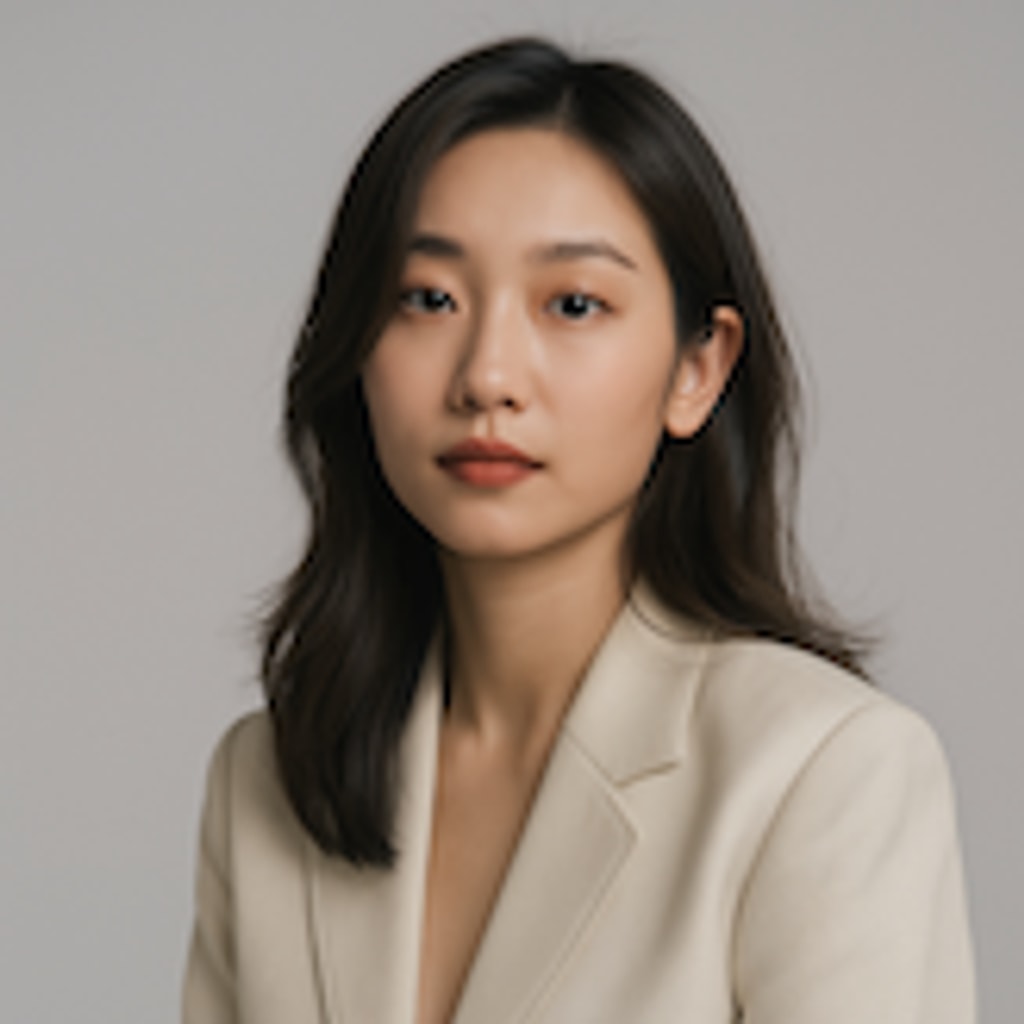
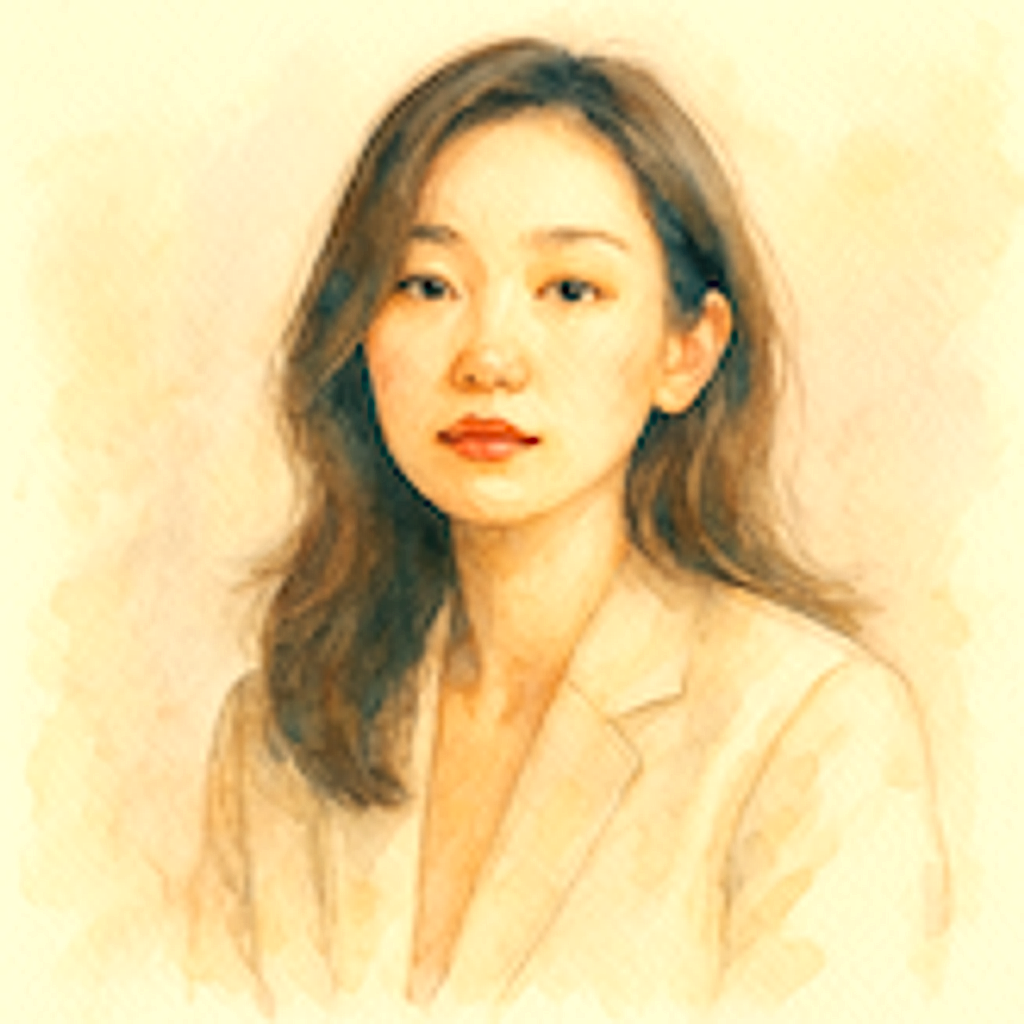
- Input
- One clear reference photo
- Output
- Textured oil-painting interpretation
- Best for
- Portraits, pets, landscapes, interiors, and gifts
Original photo / Oil painting
See the painted texture before you generate
Drag the divider to compare the original portrait with a warm, textured oil-painting interpretation.
Original photoOil paintingA focused photo-to-oil-painting workflow
Preserve the source composition
The preset anchors the subject, pose, framing, and important color relationships while changing the medium.
Add layered paint and canvas grain
The direction calls for visible brushstrokes, blended paint, textured edges, and a restrained canvas surface.
Adjust the painterly finish
Edit the prompt to request broader strokes, finer portrait detail, stronger impasto, or a quieter background.
How to turn a photo into an oil painting
The oil-painting preset provides a medium-specific starting point while keeping the reference, prompt, model, canvas, and output controls editable.
- 1
Choose a photo with clear light and color
Portraits, pets, landscapes, and objects with readable light, shape, and color give the paint treatment a useful structure.
- 2
Review the oil-paint direction
Keep the preset or specify brush size, paint thickness, canvas grain, color temperature, and background detail.
- 3
Generate and compare to the source
Inspect identity, proportions, color relationships, brushwork, and important details before downloading or refining the painting.
What to check in an oil-painting result
- Paint texture changes fine detail
- Small text, jewelry, hair, hands, distant objects, and product markings can simplify under layered brushwork.
- This creates a digital image
- The workflow generates a digital oil-painting interpretation. It does not order, print, or ship a hand-painted physical canvas.
- Use source material you can share
- Only upload photos and references that you are allowed to use for your intended personal, educational, or commercial project.
Photo to oil painting FAQ
- What photos work best for an oil painting?
- Use a clear subject with readable light, color, and separation from the background. Portraits, pets, landscapes, and interiors are useful starting points.
- Will the subject stay recognizable?
- The preset asks to preserve the main subject, pose, proportions, and framing, but brushwork can change small features. Review the result before using it.
- Can I change the brushwork or canvas texture?
- Yes. Edit the prompt to request broader or finer strokes, thicker paint, smoother blending, stronger canvas grain, or a simpler background.
- Does ImageStyle send me a physical painting?
- No. This workflow creates a downloadable digital image. ImageStyle does not provide physical painting, printing, framing, or shipping through this page.
Updated:
Workflow source: Current ImageStyle reference-image generator.