Text to image
Create an image from text when your idea starts with words.
The text-to-image workflow begins with the visual result you want to describe. Write the subject, setting, composition, and details that matter, then select an available model and image setup before you generate.
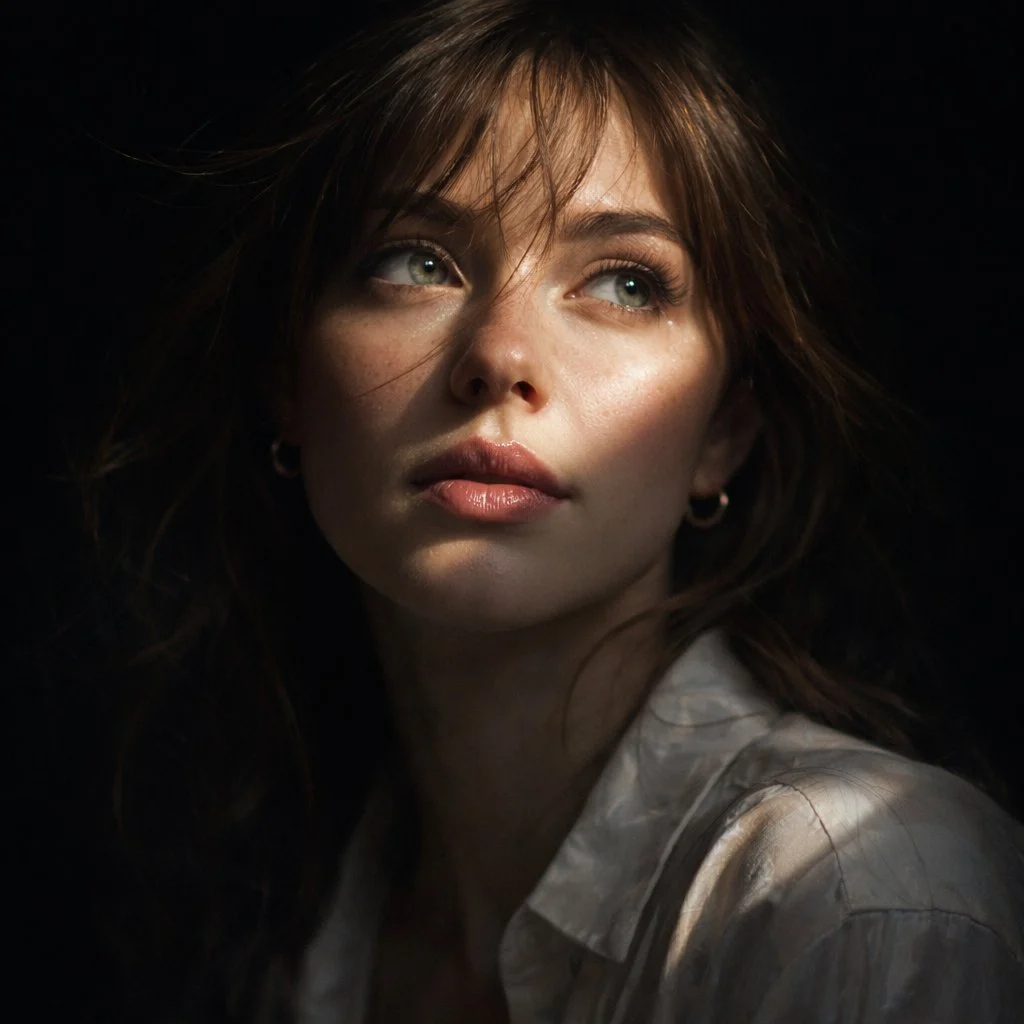
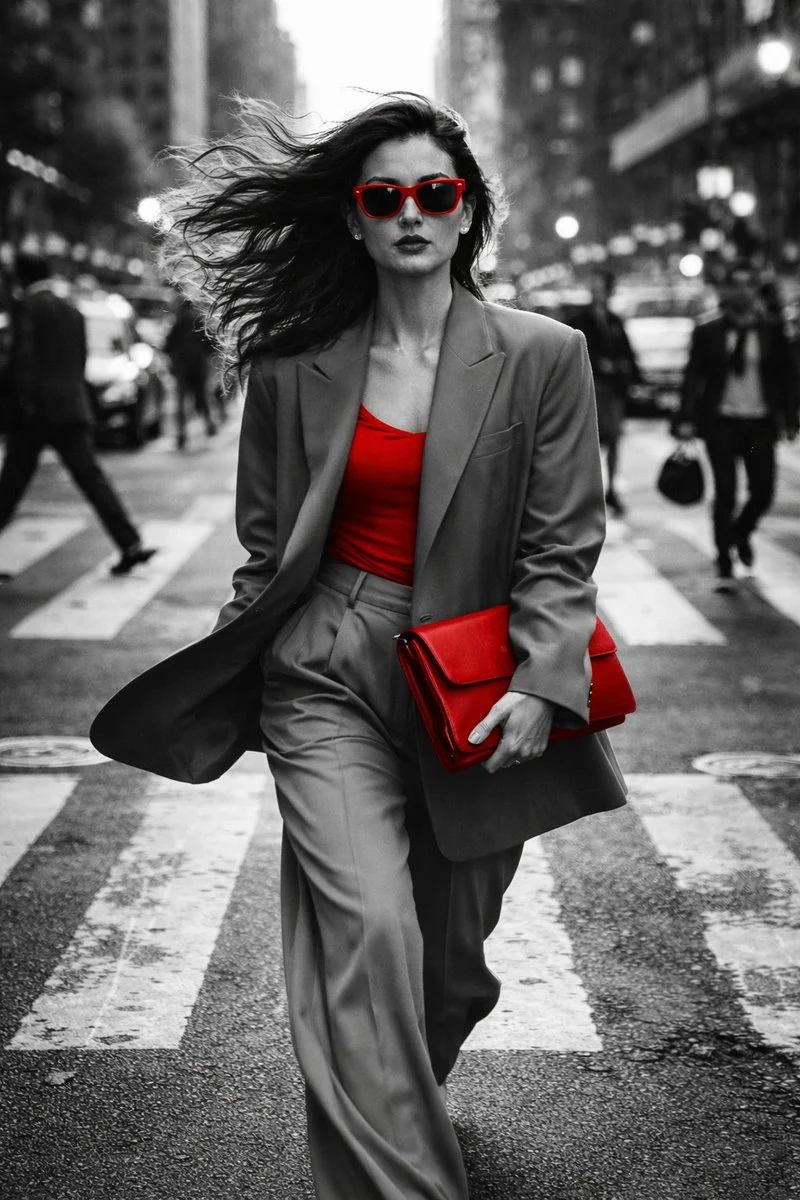
- Input
- A written visual direction
- Choose
- A model and available output setup
- Output
- A new image variation to inspect
Write a visual brief with a specific outcome
These verified local Nano Banana family examples show how written direction can move from a place to a visual system to a scene with action.
Every card identifies whether it is a verified model-family example or a visual reference. Reference cards are not model benchmarks or before-and-after claims.
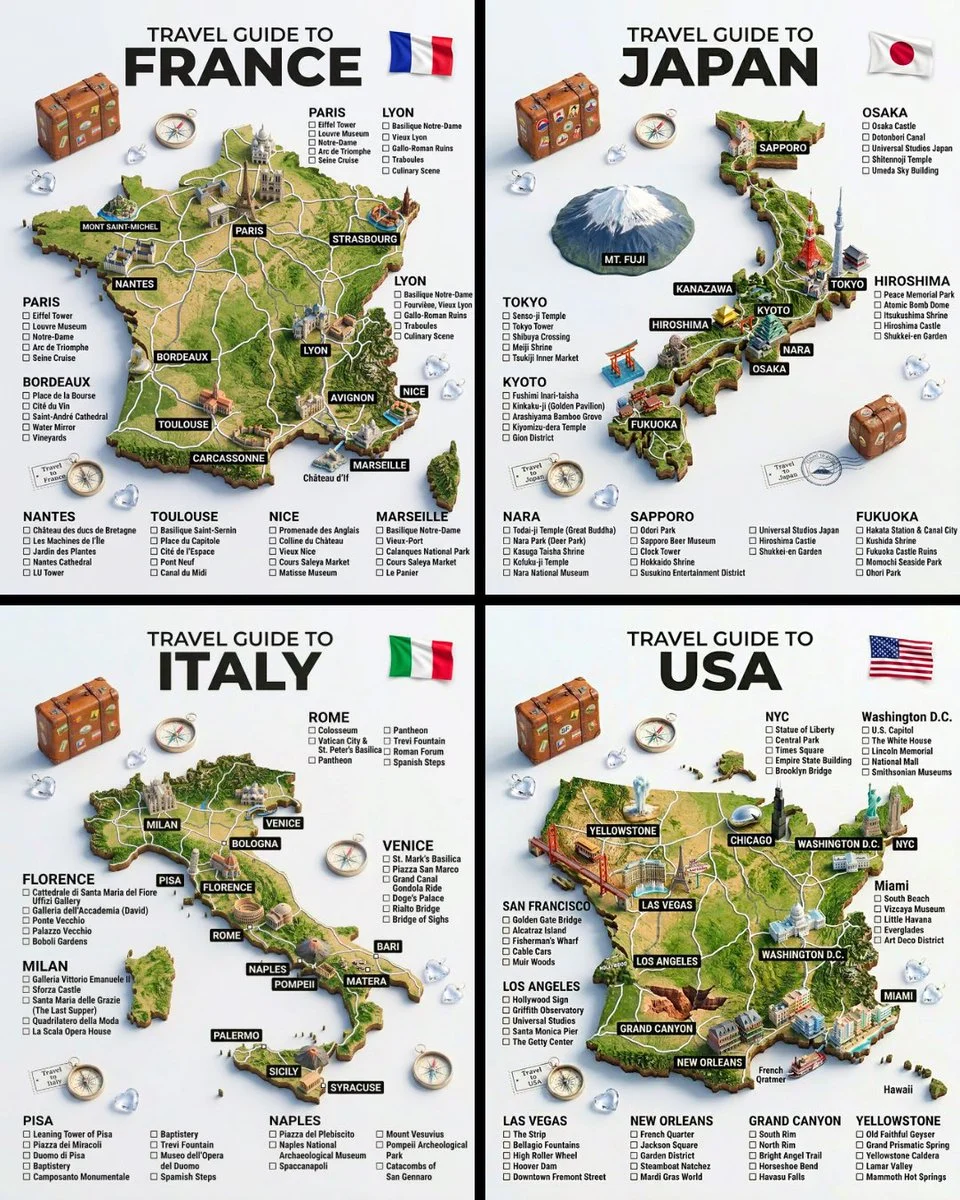
Subject, place, and structure
Turn a broad idea into a specific place, a hero subject, and a repeatable layout.
Verified model-family example
Verified Nano Banana family example from the local ImageStyle prompt library.
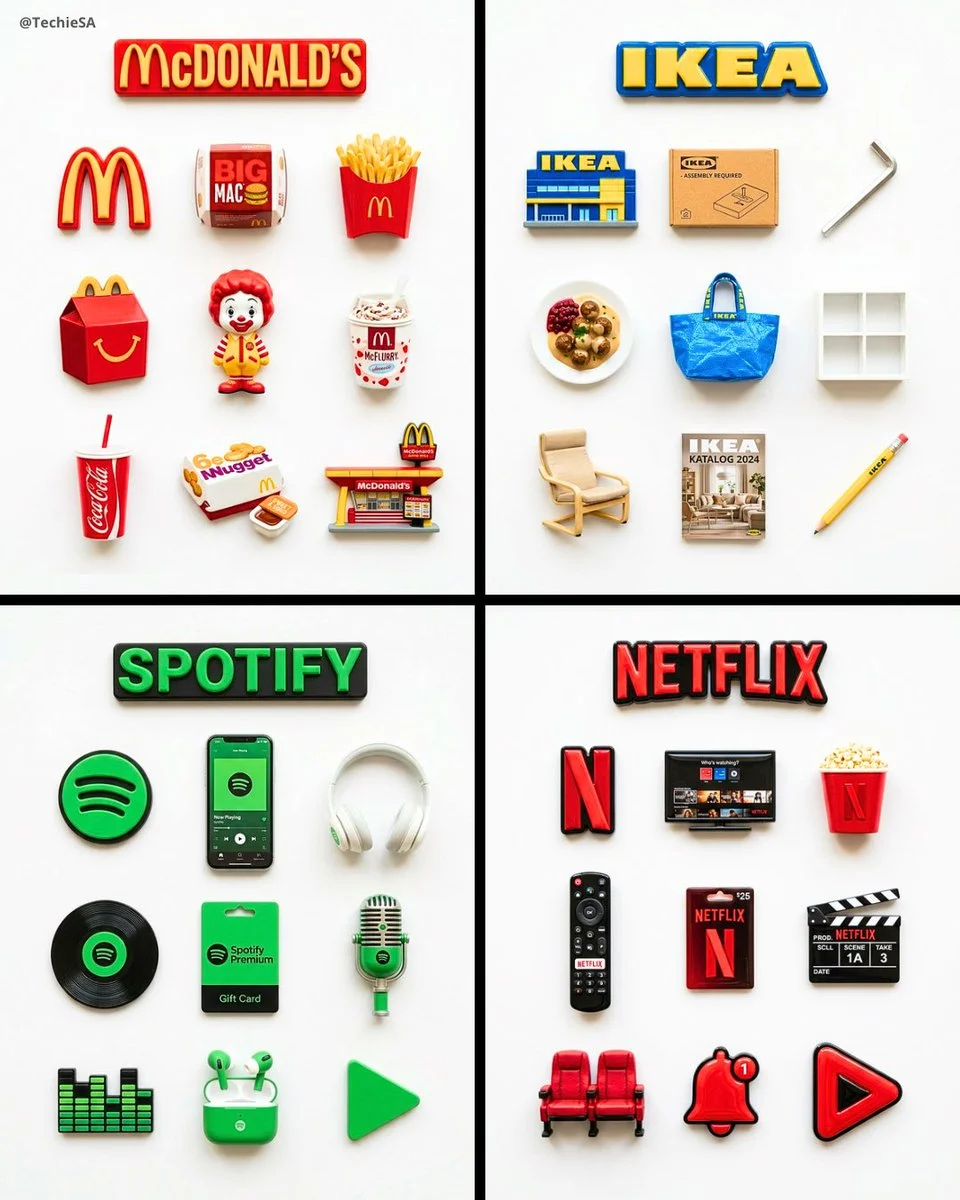
A consistent visual system
Specify the repeated object, material treatment, and layout rule that tie a set together.
Verified model-family example
Verified Nano Banana family example from the local ImageStyle prompt library.
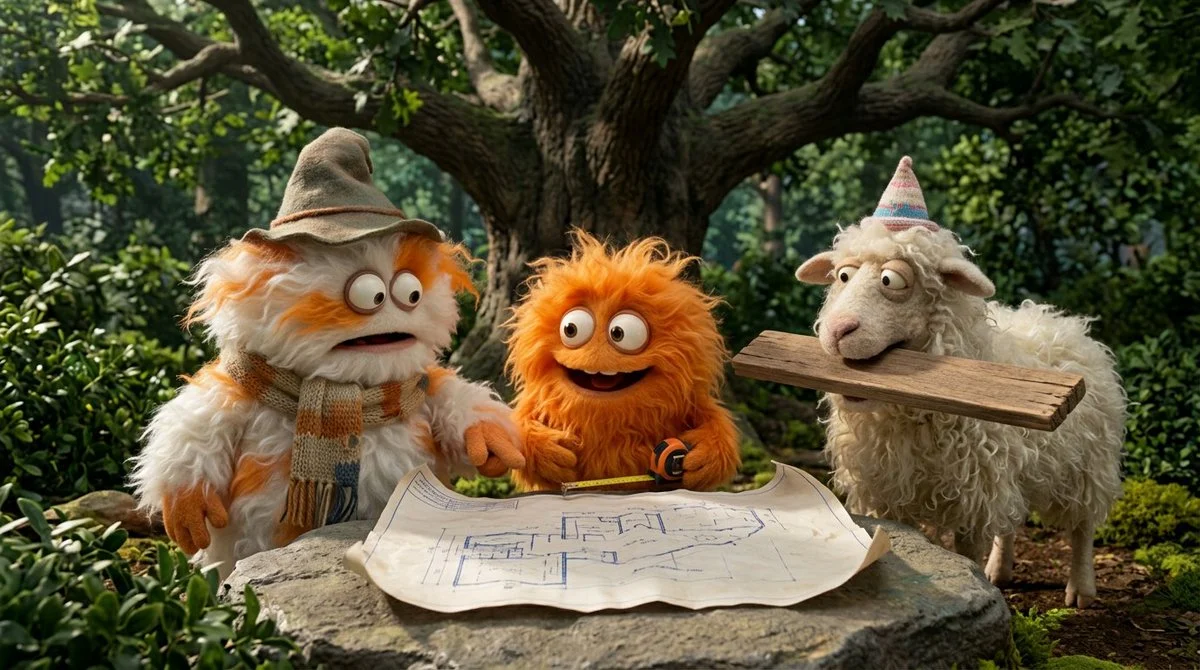
Action and scene relationship
Name who is present, what is happening, and where the action takes place.
Verified model-family example
Verified Nano Banana family example from the local ImageStyle prompt library.
What to include in a text-to-image direction
The subject and setting
Name the central subject and where it appears so the image has a concrete starting point.
The composition and priority
Explain what should be close, wide, centered, or secondary instead of leaving visual hierarchy implicit.
The details that need attention
Call out materials, light, color, mood, or required text only when they affect the image you need to review.
A text-to-image workflow that starts with intent
Treat the prompt like a compact creative brief. The more clearly it states the intended outcome, the easier it is to decide whether the generated image is ready or needs another pass.
- 1
Write the visual outcome
Describe what the viewer should see, not just an aesthetic label or the name of a trend.
- 2
Add composition and context
Include the scene, framing, viewpoint, or aspect intent when those elements matter to the job.
- 3
Choose a supported image setup
Select the model, aspect ratio, and output options that are available for your chosen workflow.
- 4
Generate, review, and revise
Inspect the visible result, then update the written direction or settings before creating another image.
Use text-to-image output carefully
- A prompt does not guarantee exact text or details
- Check readable copy, brand details, proportions, and any element that must be precise in the final visual.
- Models expose different options
- Available output settings, aspect ratios, and credit cost depend on the model you select.
- Use the right workflow for a supplied image
- When an existing image should guide the result, use the image-to-image workflow on a model that supports reference input.
Text to image generator FAQ
- What is a text-to-image generator?
- A text-to-image generator creates AI-generated images from text descriptions. In ImageStyle, the prompt, selected model, and available output settings shape the result.
- Can I create AI-generated background images from text?
- Yes. Describe the scene, palette, composition, and any open space you need. Review the generated image before using it as a background in a real project.
- How detailed should a text-to-image prompt be?
- Be specific about the subject, setting, composition, and the details that matter most. Leave out details that are not relevant to the intended image role.
- Can I generate an image without uploading a photo?
- Yes. Text-to-image starts with a written visual direction. A reference image is optional only when you move to a compatible image-to-image workflow.
- What do I do when the first result is not right?
- Identify the part of the direction that needs to change, revise the prompt or available settings, and generate another variation for review.
Updated:
Capability source: Current ImageStyle image-generation workspace.