Photo to embroidery
Turn a photo into embroidered thread art.
Upload a photo and use the reference-guided preset to rebuild it from visible stitches on fabric. The preset keeps the subject readable while the workspace keeps the fabric, thread palette, and framing editable.
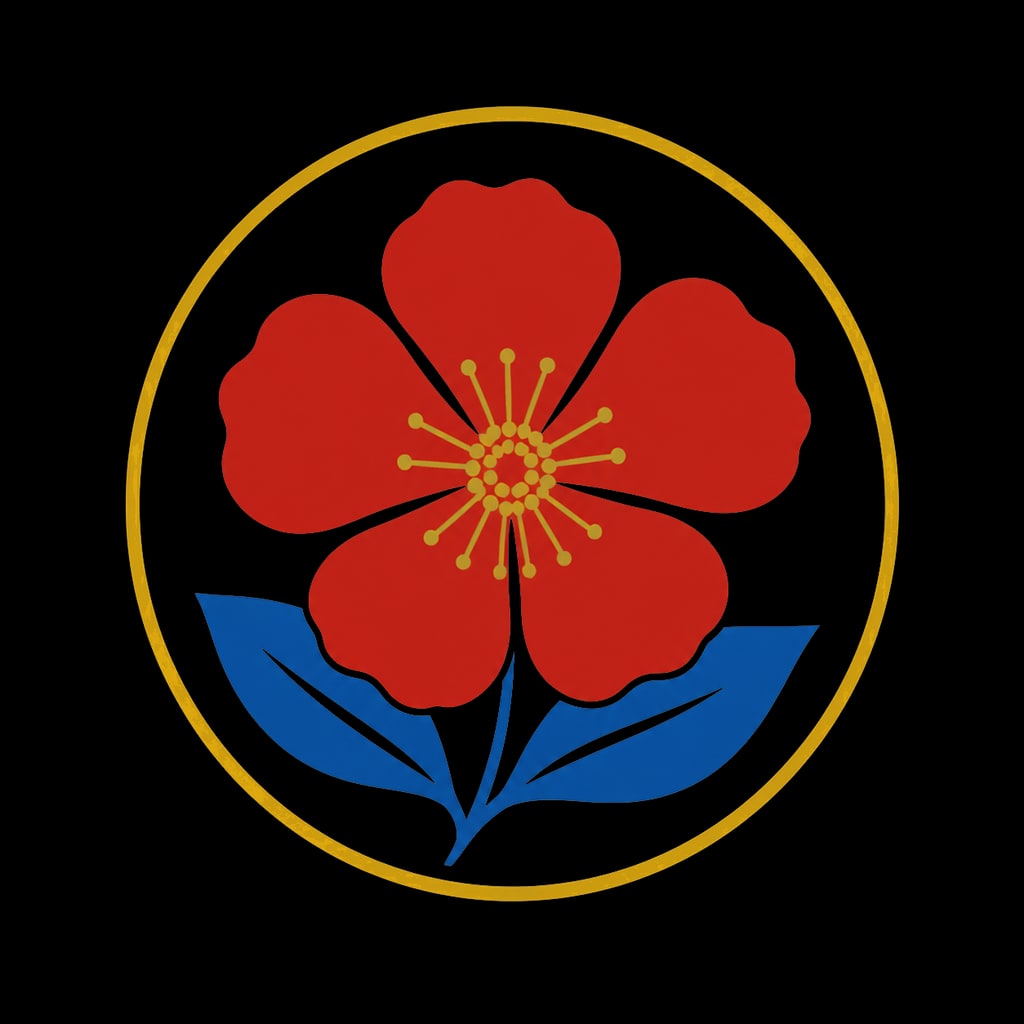
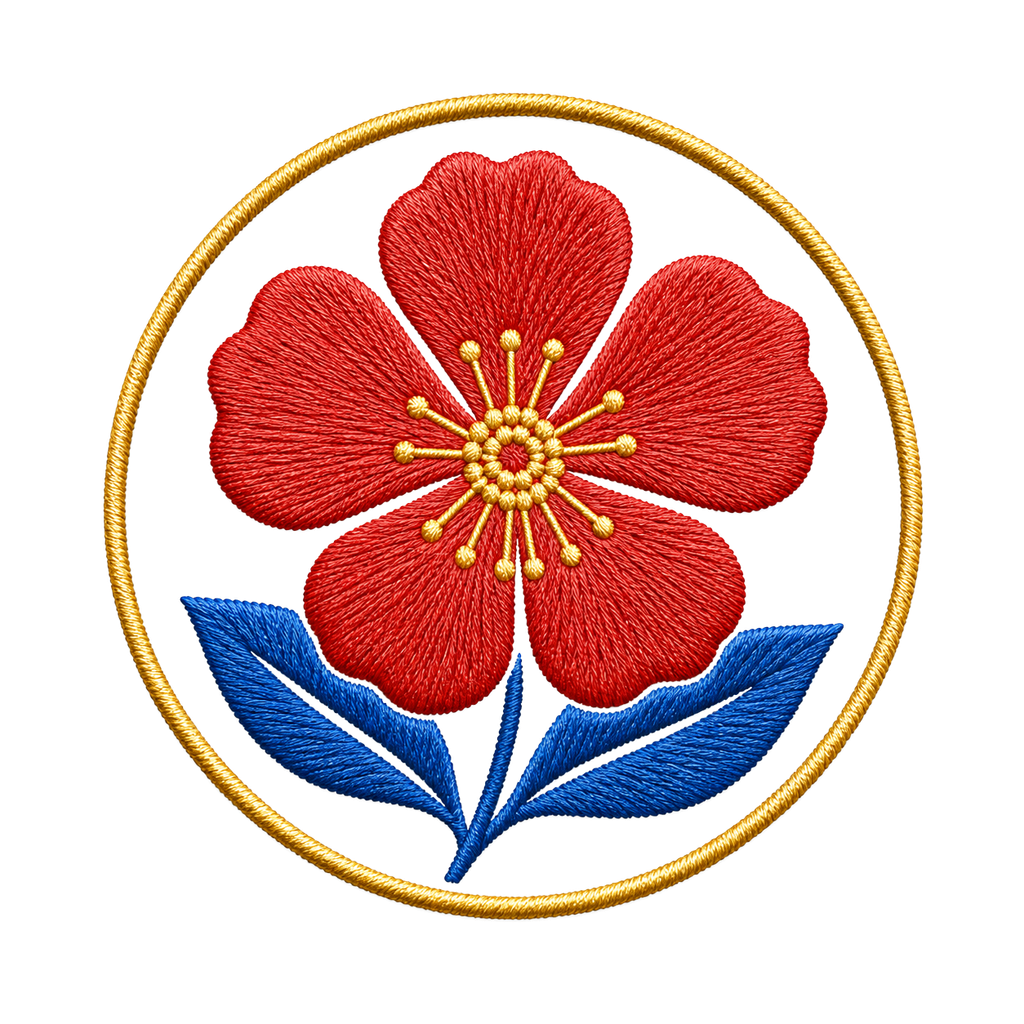
- Input
- One clear photo with a simple subject
- Output
- Hand-embroidered textile artwork
- Best for
- Pets, florals, monograms, and craft projects
Original photo / Embroidery
See the stitch texture before you generate
Drag the divider to compare the source photo with a hand-embroidered thread interpretation on fabric.
Original photoEmbroideryA focused photo-to-embroidery workflow
Keep the silhouette readable
The preset asks the model to preserve the main subject while translating detail into stitch direction and thread weight.
Adjust the fabric and palette
Edit the starter prompt when you want darker linen, brighter threads, or a denser fill for the design.
Compare against the source
Use the reference-image comparison to check the silhouette and stitch pattern before downloading or generating again.
How to turn a photo into embroidery
The preset supplies the stitch direction while the ImageStyle workspace keeps the prompt and output settings editable.
- 1
Upload one simple photo
Single subjects with clear outlines, such as pets, flowers, or logos, translate into stitch designs more cleanly than crowds.
- 2
Review the embroidery prompt
The satin-stitch and linen-fabric direction is prefilled. Keep it or specify a different fabric, thread palette, or density.
- 3
Generate and compare
Inspect the stitched result beside the original photo, then refine the prompt or download the artwork.
What to inspect in the generated embroidery
- Detail becomes stitching
- Fine faces and small text cannot survive as individual stitches. Simple shapes and bold silhouettes read best.
- It is a printed-style render
- The output is a stitched-texture artwork, not a machine embroidery file. Do not use it as production stitching data.
- Use source material you can share
- Only upload photos and references that you are allowed to use for the intended project.
Photo to embroidery FAQ
- What photos work best for embroidery?
- Single subjects with clear outlines such as pets, flowers, leaves, and simple marks. Fewer competing details produce cleaner stitching.
- Do I need to write a prompt?
- No. The embroidery preset starts with an editable satin-stitch direction. Generate as-is or adjust the fabric and palette first.
- Can I get a machine embroidery file?
- No. The result is a stitched-texture artwork. Use dedicated digitizing software if you need production stitching data.
- What happens to my uploaded photo?
- The image is uploaded to the same reference-image workflow used by the ImageStyle generator. Review the current privacy and storage terms before using sensitive material.
Updated:
Workflow source: Current ImageStyle reference-image generator.