Photo to charcoal drawing
Turn a photo into a charcoal drawing.
Upload a photo and use the reference-guided preset to rebuild it from broad charcoal strokes and smudged shadows. The preset keeps the subject readable while the workspace keeps paper texture and contrast editable.
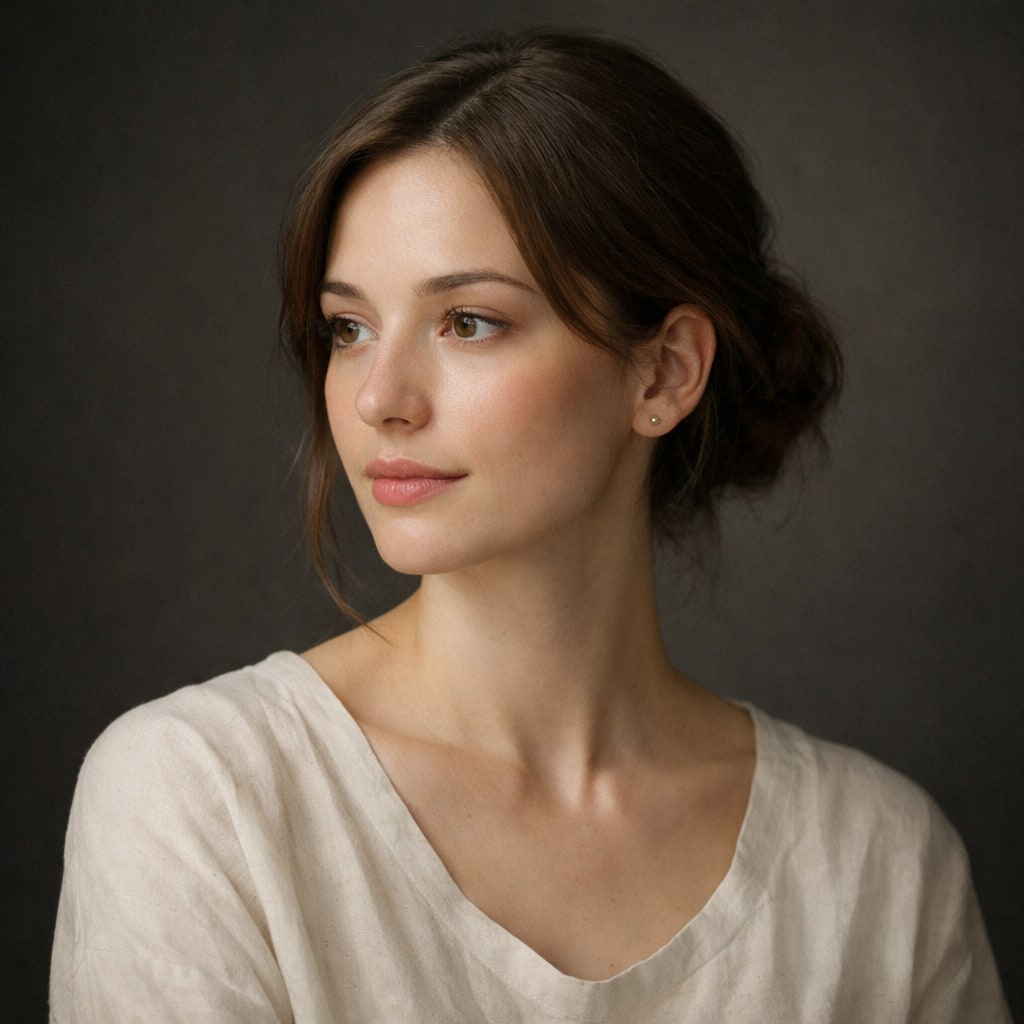
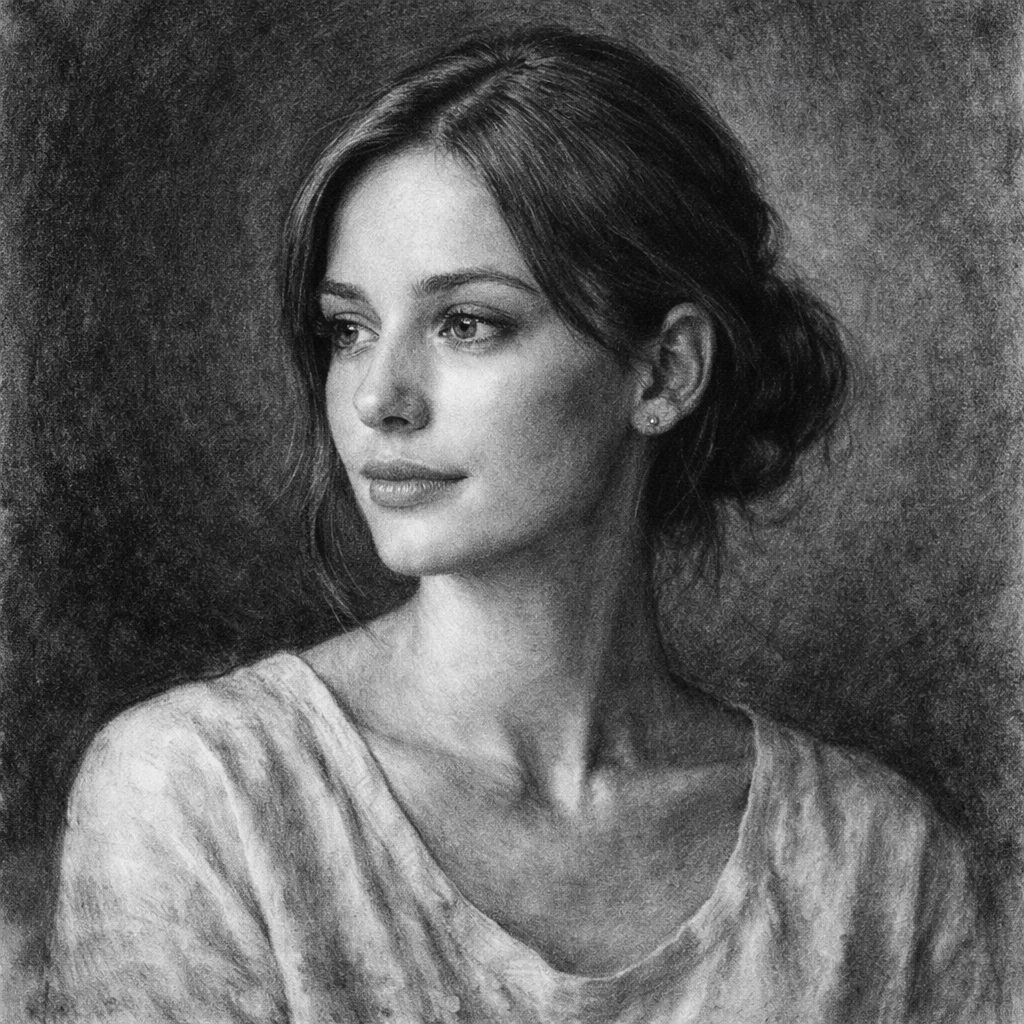
- Input
- One photo with clear light direction
- Output
- Black-charcoal drawing on rough paper
- Best for
- Portraits, pets, and dramatic gifts
Original photo / Charcoal drawing
See the charcoal tones before you generate
Drag the divider to compare the source photo with a smudged, high-contrast charcoal drawing.
Original photoCharcoal drawingA focused photo-to-charcoal workflow
Keep the likeness strong
The preset preserves proportions and features while letting value contrast do the expressive work.
Push drama or softness
Edit the prompt for deeper smudged shadows and rough edges, or lighter lifted charcoal for a gentle portrait.
Compare against the source
Use the reference-image comparison to check likeness before downloading or generating another pass.
How to turn a photo into a charcoal drawing
The preset supplies the charcoal direction while the ImageStyle workspace keeps the prompt and output settings editable.
- 1
Upload a photo with clear light
Side-lit portraits and animals with visible fur or texture translate into charcoal tone more convincingly.
- 2
Review the charcoal prompt
The willow-charcoal direction is prefilled. Keep it, or ask for rougher strokes and deeper shadows.
- 3
Generate and compare
Inspect the drawing beside the original photo, then refine or download the result.
What to inspect in the generated drawing
- Small features may soften
- Charcoal smudging simplifies fine skin and hair detail. Check eyes and mouth at full size.
- Flat light flattens drama
- Evenly lit or low-contrast photos produce flat charcoal tone. Strong light direction works better.
- Use source material you can share
- Only upload photos and references that you are allowed to use for the intended project.
Photo to charcoal drawing FAQ
- How is charcoal different from pencil sketch?
- Charcoal works in broad smudged tones with deep blacks, while the pencil-sketch preset keeps lighter graphite strokes and finer hatching.
- Do I need to write a prompt?
- No. The charcoal preset starts with an editable direction. Generate as-is or adjust stroke roughness and contrast first.
- Can I add a color accent?
- You can edit the prompt to allow one accent, but the preset is tuned for pure monochrome. Full color is a different style.
- What happens to my uploaded photo?
- The image is uploaded to the same reference-image workflow used by the ImageStyle generator. Review the current privacy and storage terms before using sensitive material.
Updated:
Workflow source: Current ImageStyle reference-image generator.