Qwen Image 3 text to image
Create a Qwen Image 3 visual from a clear text direction.
Use the standard Qwen Image 3 workflow when the image begins with a written brief. State the subject, composition, lighting, and priority details, then choose a 1K or 2K output and a fixed frame before generating.
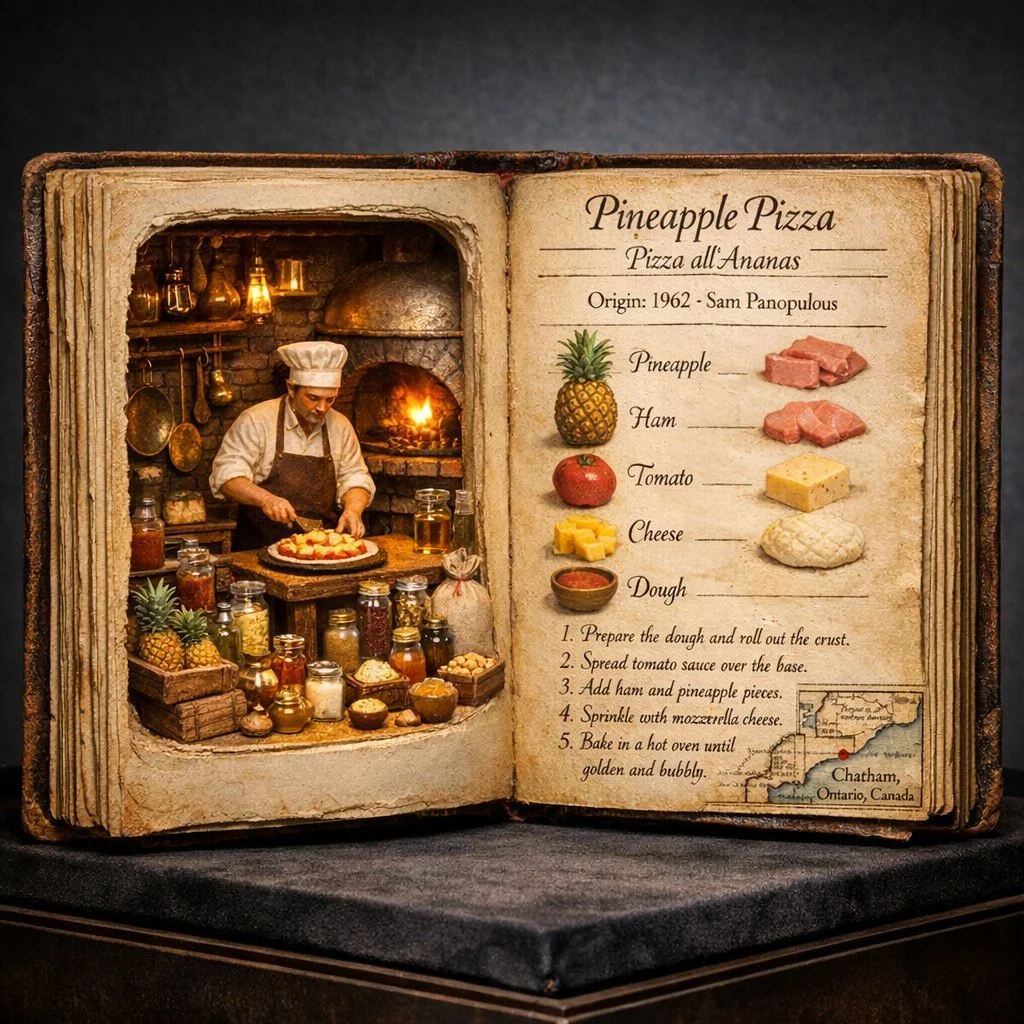
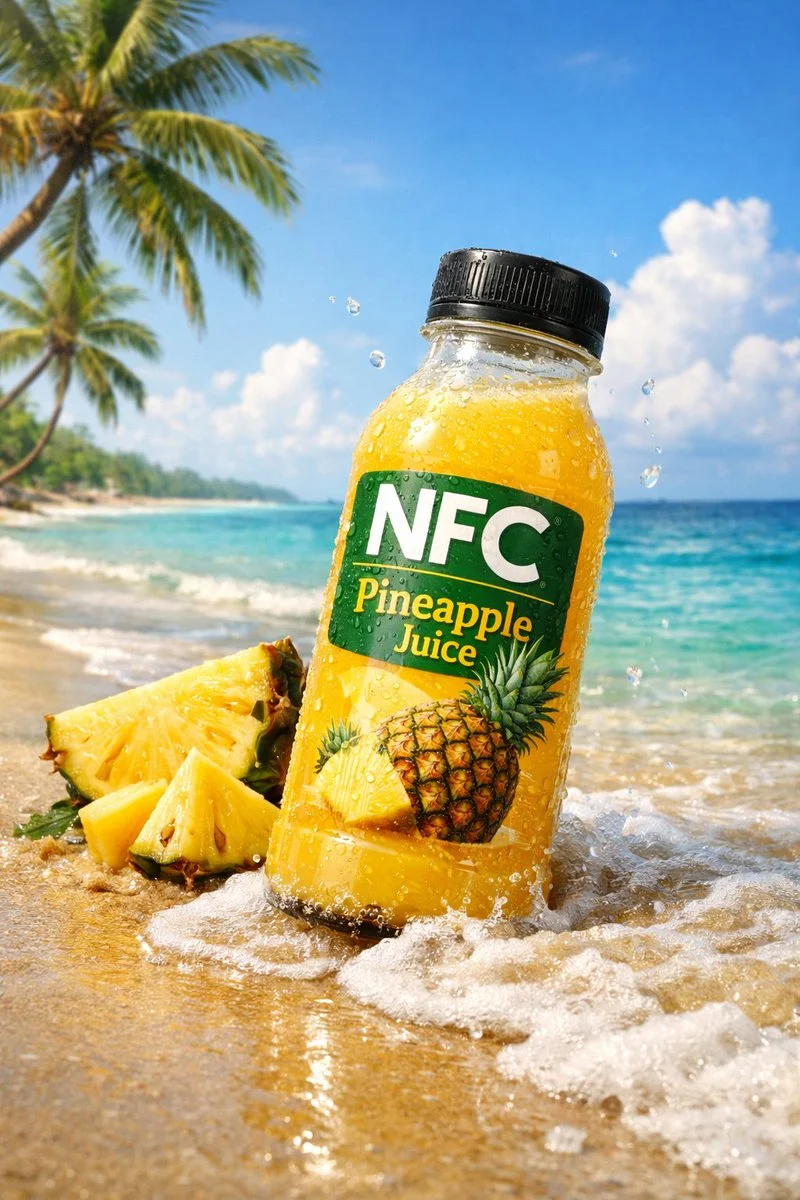
- Start with
- A written image direction
- Output
- 1K or 2K
- Frame choices
- Eight fixed aspect ratios
Write a visual brief with a specific outcome
These verified local Nano Banana family examples show how written direction can move from a place to a visual system to a scene with action.
Every card identifies whether it is a verified model-family example or a visual reference. Reference cards are not model benchmarks or before-and-after claims.
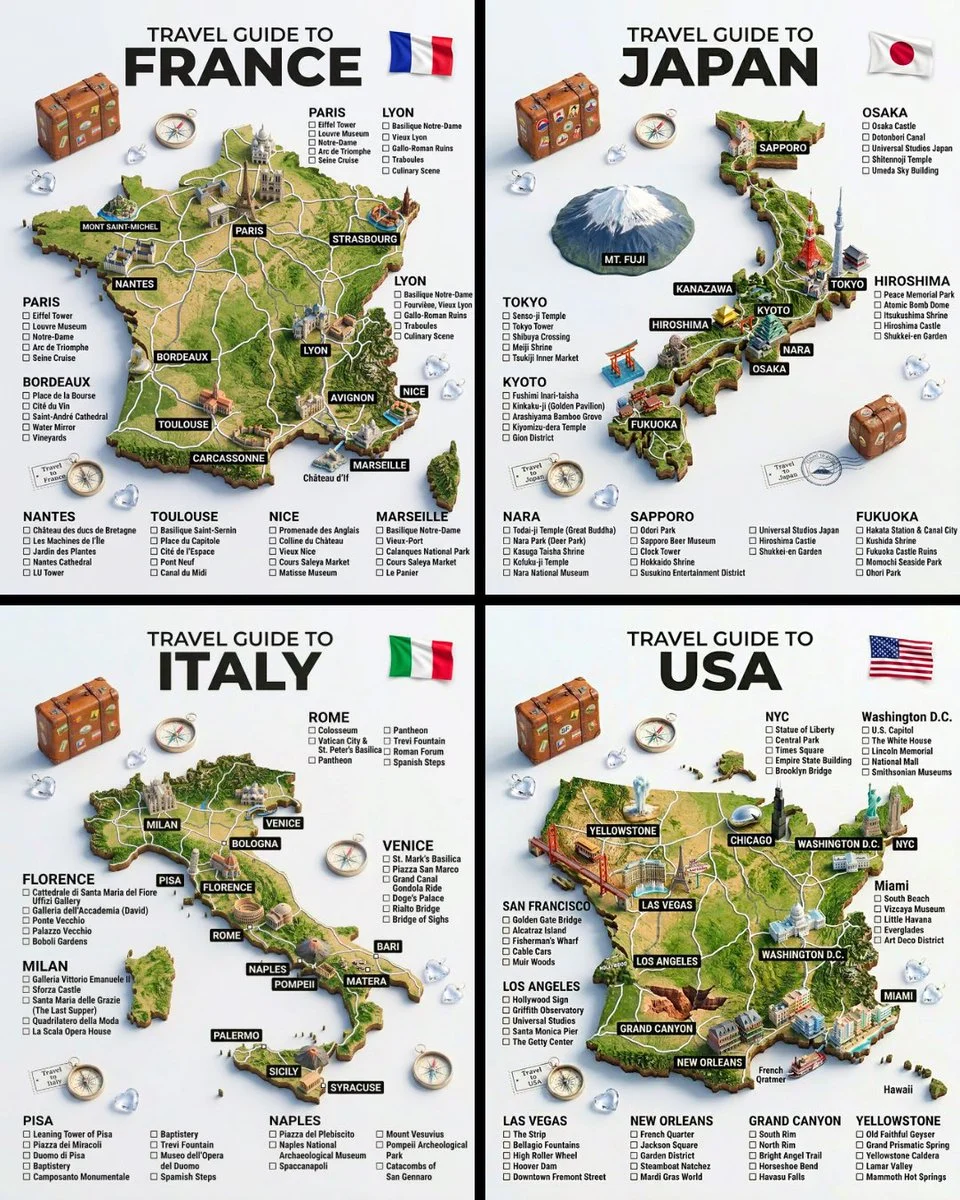
Subject, place, and structure
Turn a broad idea into a specific place, a hero subject, and a repeatable layout.
Verified model-family example
Verified Nano Banana family example from the local ImageStyle prompt library.
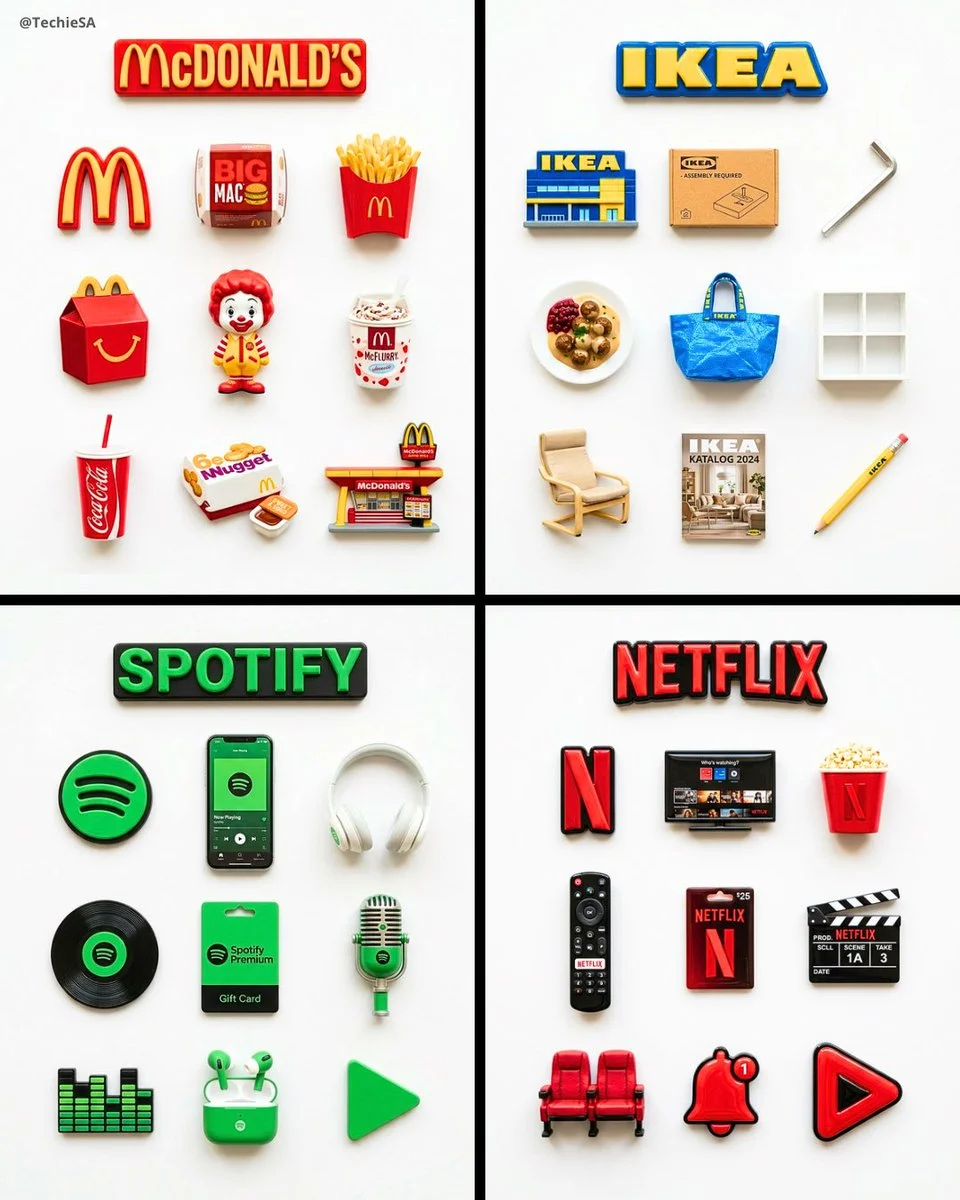
A consistent visual system
Specify the repeated object, material treatment, and layout rule that tie a set together.
Verified model-family example
Verified Nano Banana family example from the local ImageStyle prompt library.
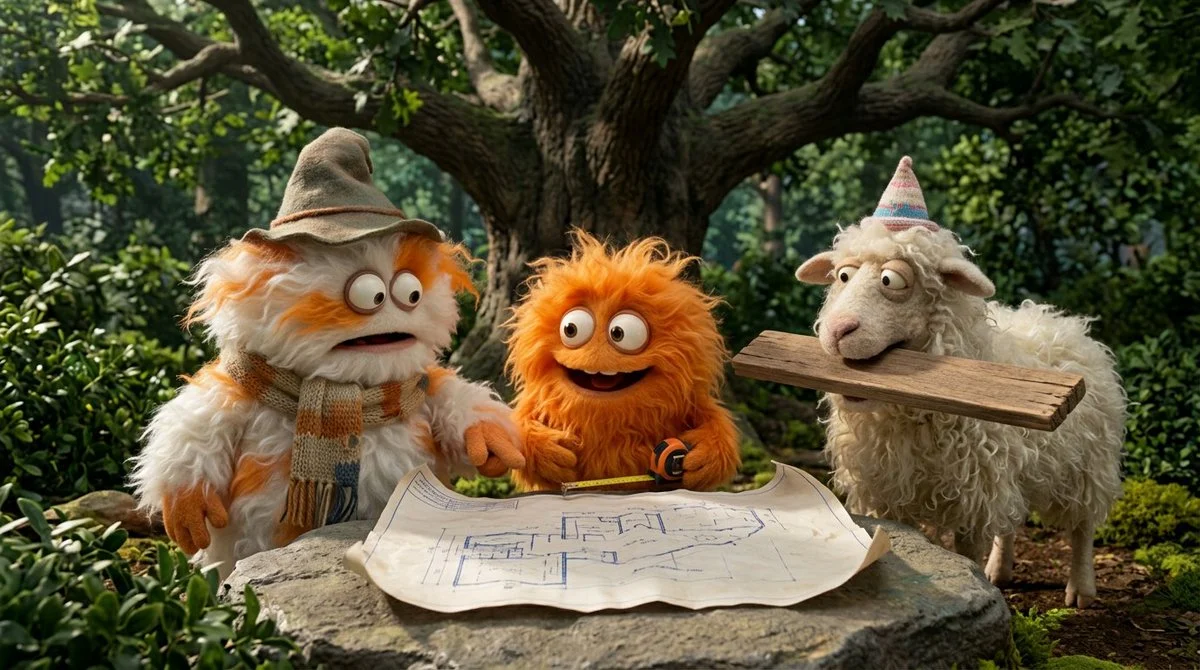
Action and scene relationship
Name who is present, what is happening, and where the action takes place.
Verified model-family example
Verified Nano Banana family example from the local ImageStyle prompt library.
What to specify in Qwen Image 3 text to image
The visual subject
Name the main thing the viewer should recognize first, then add its setting and visible materials.
Composition and framing
Describe the camera distance or layout, then select the Qwen frame that matches the final placement.
Important constraints
Give text, product, color, or placement requirements a clear priority instead of burying them in style tags.
How to use Qwen Image 3 for text to image
A compact brief is easier to refine when it makes the scene, composition, and one non-negotiable detail easy to inspect.
- 1
Write the visible scene
Start with the subject and setting, followed by the framing, light, and details that matter to the image role.
- 2
Choose 1K or 2K and a frame
Use the current Qwen Image 3 controls to choose the output tier and one of eight supported aspect ratios.
- 3
Generate and review
Check the first result for readable text and visible details, then revise the direction for the next attempt.
What to check before using a Qwen Image 3 result
- The selected workflow controls the input
- Qwen Image 3 and Qwen Image 3 Pro accept either a text direction or approved reference images. Output is currently available at 1K or 2K with eight fixed frames.
- Inspect details that need to stay accurate
- Treat each output as a new image. Review product details, text, proportions, and the elements a prompt or reference was intended to preserve.
- Use only publishable source material
- Upload reference images only when you have the rights to use them, and review the generated result before publishing it.
Qwen Image 3 text to image FAQ
- What is Qwen Image 3 text to image?
- It is the Qwen Image 3 workflow that creates an image from a written direction. In ImageStyle, the standard tier offers 1K or 2K output and eight fixed frame options.
- What should a Qwen Image 3 prompt include?
- Start with the subject, setting, composition, light, and the details that must be visible. Keep the required parts explicit so they can be reviewed in the result.
- Can I choose the output size?
- Yes. The current Qwen Image 3 text-to-image workflow offers 1K and 2K output tiers, plus eight fixed aspect ratios.
- When should I use Qwen Image 3 Pro instead?
- Use the Pro workflow when the higher-fidelity Qwen tier is worth the additional credits for the task. Input types and available output tiers remain comparable.
Updated:
Capability source: Current ImageStyle Qwen Image 3 workspace.