Turn photo into stencil
Turn a photo into a printable stencil.
Upload a photo and start with a reference-guided stencil preset. It simplifies the subject into high-contrast connected shapes, then lets you refine the cuttable detail in the existing image workspace.

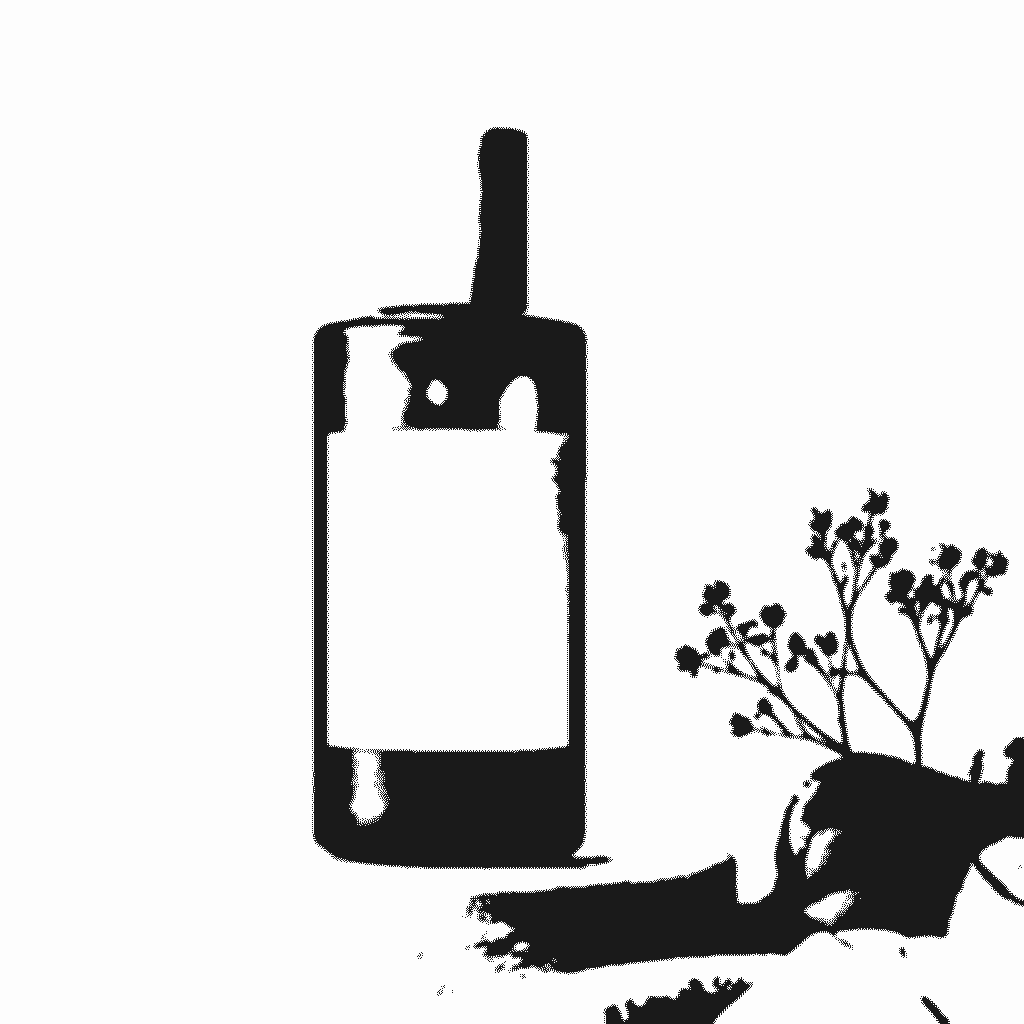
- Input
- One clear photo
- Output
- High-contrast stencil template
- Best for
- Crafts, portraits, posters, and spray paint
Original photo / Stencil template
See the cuttable shape before you generate
Drag the divider to compare the source photo with a bold, high-contrast stencil treatment.
Original photoStencil templateA focused photo-to-stencil workflow
Build connected cuttable shapes
The preset favors bold regions and connected bridges so the result reads as a practical stencil instead of a fragile collection of lines.
Keep the main silhouette recognizable
The subject, important interior contours, and defining features remain the priority while distracting background texture is simplified.
Tune the craft direction
Edit the prompt when you need a simpler portrait stencil, a logo-like silhouette, or more interior structure for a poster.
How to turn a photo into a stencil
The stencil preset gives you a practical starting point while ImageStyle keeps the prompt, reference image, model, and output settings editable.
- 1
Choose a photo with a clear silhouette
Front-facing portraits, pets, objects, and high-contrast subjects are easier to turn into shapes that can be cut or masked.
- 2
Review the cuttable-shape prompt
Keep the preset or ask for fewer islands, stronger bridges, a plain background, or more recognizable interior contours.
- 3
Generate and inspect the template
Check the result at full size before printing, cutting, spraying, or transferring it to another craft workflow.
What to check before cutting
- Thin bridges can be fragile
- Very fine details may disappear or create floating islands. Simplify the prompt when the physical material needs extra strength.
- Small text and facial details may change
- Review letters, eyes, hands, and product markings at full size. A stencil is a simplified craft template, not a pixel-perfect copy.
- Use source material you can share
- Only upload photos and references that you are allowed to use for your intended personal, educational, or commercial project.
Photo to stencil FAQ
- What makes a photo good for a stencil?
- A clear subject with a strong silhouette and visible contrast usually produces more useful cuttable shapes than a busy, low-light scene.
- Is a stencil the same as a line drawing?
- No. A stencil needs connected positive and negative shapes that can survive cutting or masking, while a line drawing can contain thin, disconnected contours.
- Can I ask for a simpler stencil?
- Yes. Edit the prompt to request fewer interior details, thicker bridges, a bolder silhouette, or a plain white background before generating again.
- Do I need to write the prompt from scratch?
- No. The page opens ImageStyle with an editable stencil prompt, GPT Image 2 selected, and a reference image required.
Updated:
Workflow source: Current ImageStyle reference-image generator.