Photo to line drawing
Turn a photo into a clean line drawing.
Upload a photo and start with a reference-guided preset for clear black-and-white outlines. Keep the main subject recognizable, then adjust line density, background detail, and shading when the first result needs refinement.
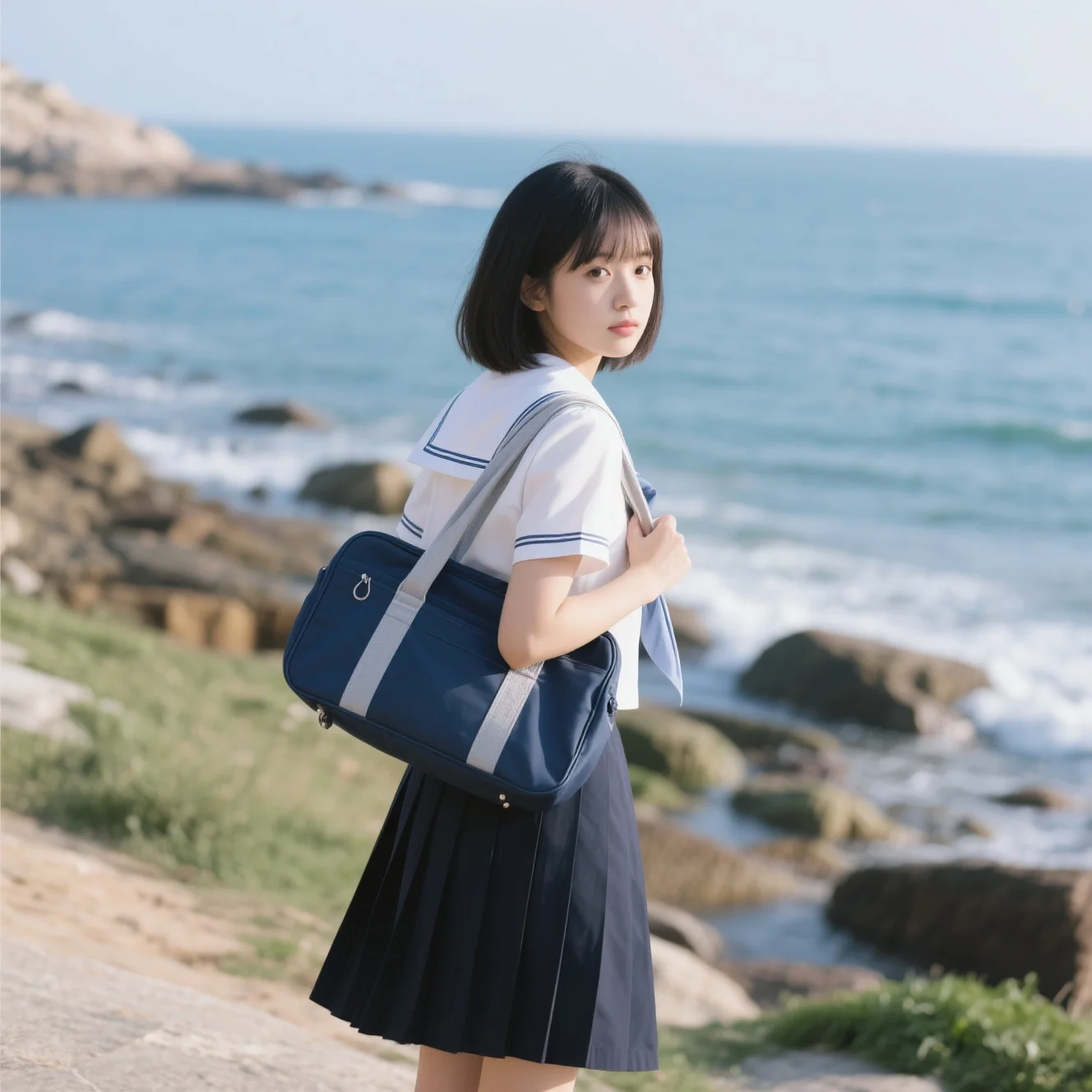
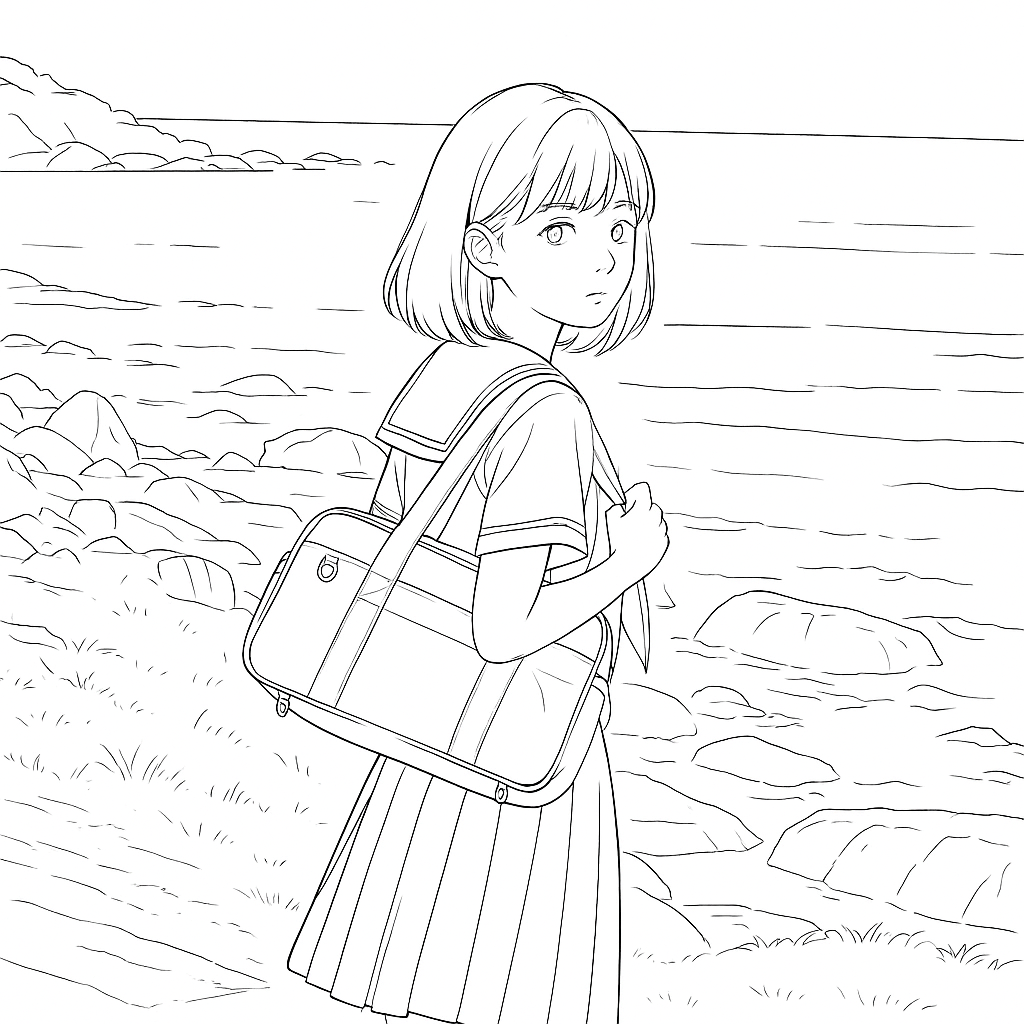
- Input
- One clear reference photo
- Output
- Black-and-white line drawing
- Best for
- Design drafts, portraits, objects, and printable projects
Original photo / Line drawing
See the structure before you generate
Drag the divider to compare the original portrait with a black-and-white line drawing that keeps the main subject readable.
Original photoLine drawingA focused photo-to-line-drawing workflow
Keep the subject structure readable
The preset asks the model to preserve the main silhouette and important interior contours while simplifying distracting texture.
Control how much detail remains
Edit the starter prompt to request sparse outlines, denser structural detail, or a cleaner background for the intended use.
Compare against the source
Use the existing reference-image comparison to inspect the subject, framing, and lines before downloading or generating again.
How to turn a photo into a line drawing
The preset supplies a useful starting direction while the ImageStyle workspace keeps the prompt, model, aspect ratio, and output settings editable.
- 1
Choose a photo with a clear subject
Portraits, pets, products, and objects with visible edges are easier to translate into readable line work than crowded scenes.
- 2
Review the line-drawing prompt
Keep the preset as written or specify which textures, background elements, and interior details should stay or be simplified.
- 3
Generate, compare, and refine
Check the result beside the uploaded photo, then adjust the prompt when the outlines need more structure or less visual noise.
What to inspect in the generated line drawing
- Busy scenes create busy lines
- Crowded backgrounds, patterned clothing, and low-contrast edges can produce more line detail than the final project needs.
- Small features may change
- Faces, hands, text, fine product markings, and thin objects should be checked at full size before the result is published or printed.
- Use reference material you can share
- Only upload photos and references that you are allowed to use for the intended personal, educational, or commercial project.
Photo to line drawing FAQ
- What photos work best for a line drawing?
- Use a clear subject with visible contrast between important edges. Portraits, pets, products, and individual objects are usually easier to simplify than crowded scenes.
- Is a line drawing the same as a coloring page?
- Not exactly. A line drawing can keep more structural and interior detail for sketches or design drafts, while a coloring-page prompt usually asks for bolder, simpler printable regions.
- Can I make the outlines simpler?
- Yes. Edit the preset to request fewer interior lines, a plain background, stronger contours, or less texture before generating another version.
- Do I need to write the prompt from scratch?
- No. The page opens the ImageStyle generator with an editable line-drawing prompt and a compatible reference-image model already selected.
Updated:
Workflow source: Current ImageStyle reference-image generator.