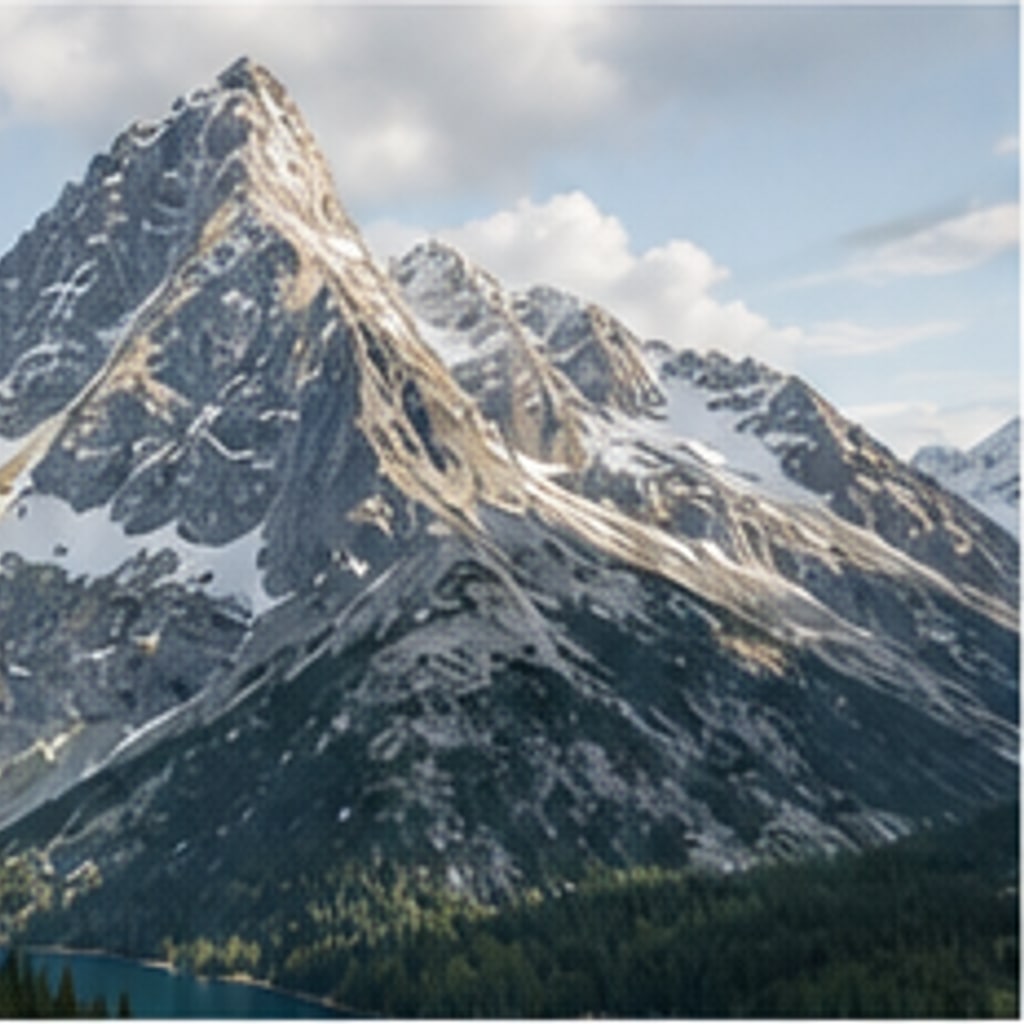
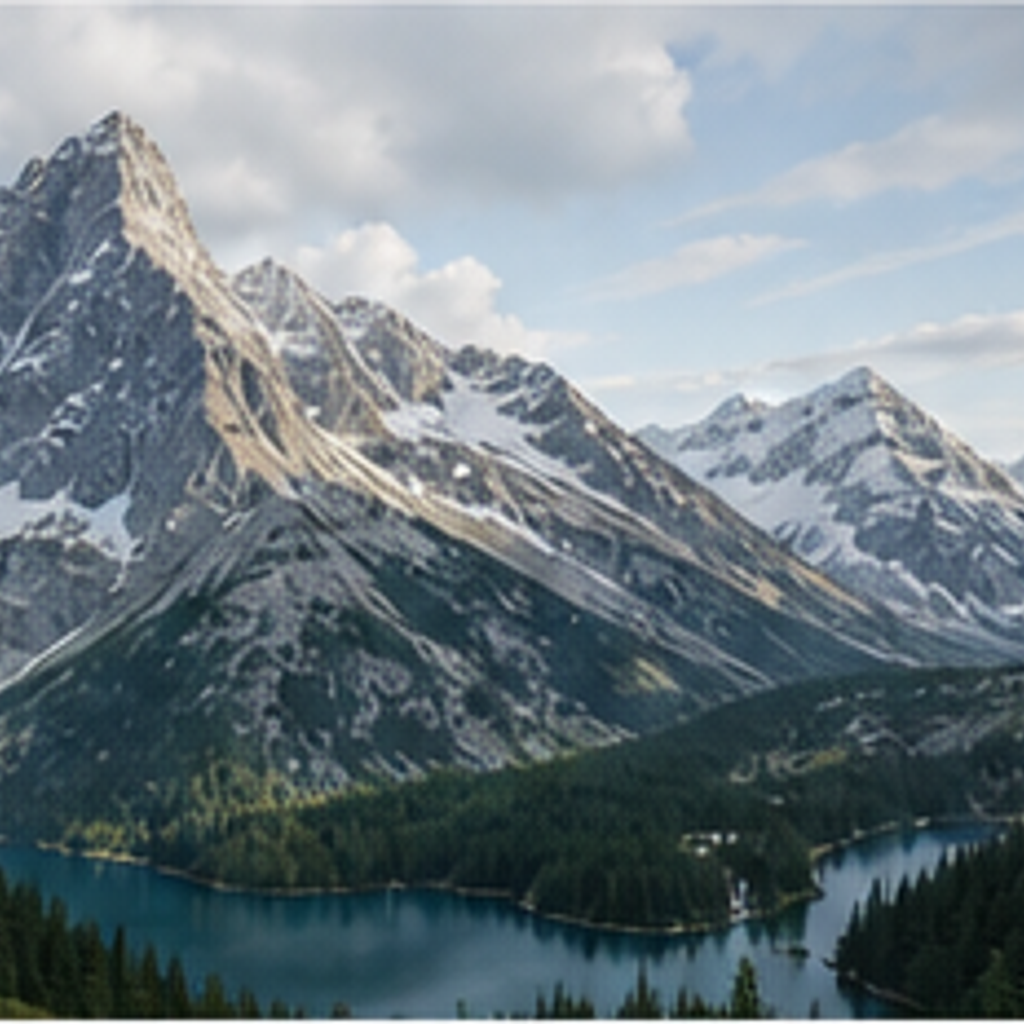
- 入力
- One photo you want to widen or lengthen
- 出力
- The same scene with seamless new surroundings
- こんな方に最適
- Wallpapers, banners, and reframing shots
Original photo / Extended image
See the extended scene before you generate
Drag the divider to compare the original framing with an extended version of the scene.
Original photoExtended imageA focused image-extending workflow
Keep the original untouched
The preset treats your photo as the anchor and only paints beyond its edges.
Match light and texture
New areas continue the existing sky, ground, and materials so the seam disappears.
Compare against the source
Use the reference-image comparison to confirm the original framing survived intact.
How to extend an image with AI
The preset supplies the outpainting direction while the ImageStyle workspace keeps the prompt and output settings editable.
- 1
Upload the photo to expand
Scenes with readable edges — sky, water, walls, fields — extend most convincingly.
- 2
Review the extension prompt
The seamless-extension direction is prefilled. Keep it, or describe what should appear in the new areas.
- 3
Generate and compare
Inspect the extended result beside the original, then refine or download it.
What to inspect in the extended image
- Cut-off subjects are tricky
- If people or objects touch the edge, the model must guess their missing parts. Check edges closely.
- Repeating patterns can drift
- Brickwork, tiles, and fences may lose rhythm in the new areas. Simplify expectations for strict patterns.
- Use source material you can share
- Only upload photos and references that you are allowed to use for the intended project.
AI image extender FAQ
- Will my original photo be cropped or moved?
- No. The preset keeps your original framing in place and only adds new image around it.
- Do I need to write a prompt?
- No. The extension direction is prefilled and editable. Generate as-is or describe the new surroundings first.
- Can I choose the new aspect ratio?
- You can adjust the output size in the workspace, and the preset will fill the expanded canvas accordingly.
- What happens to my uploaded photo?
- The image is uploaded to the same reference-image workflow used by the ImageStyle generator. Review the current privacy and storage terms before using sensitive material.
更新されました:
Workflow source: Current ImageStyle reference-image generator.