사진을 색칠 도안으로
사진을 인쇄하기 좋은 색칠 도안으로 바꾸세요.
사진을 올리면 참조 이미지 기반 워크플로가 흑백 윤곽선을 만듭니다. 먼저 프리셋을 사용하고 필요에 따라 선 굵기와 세부 수준을 조정하세요.
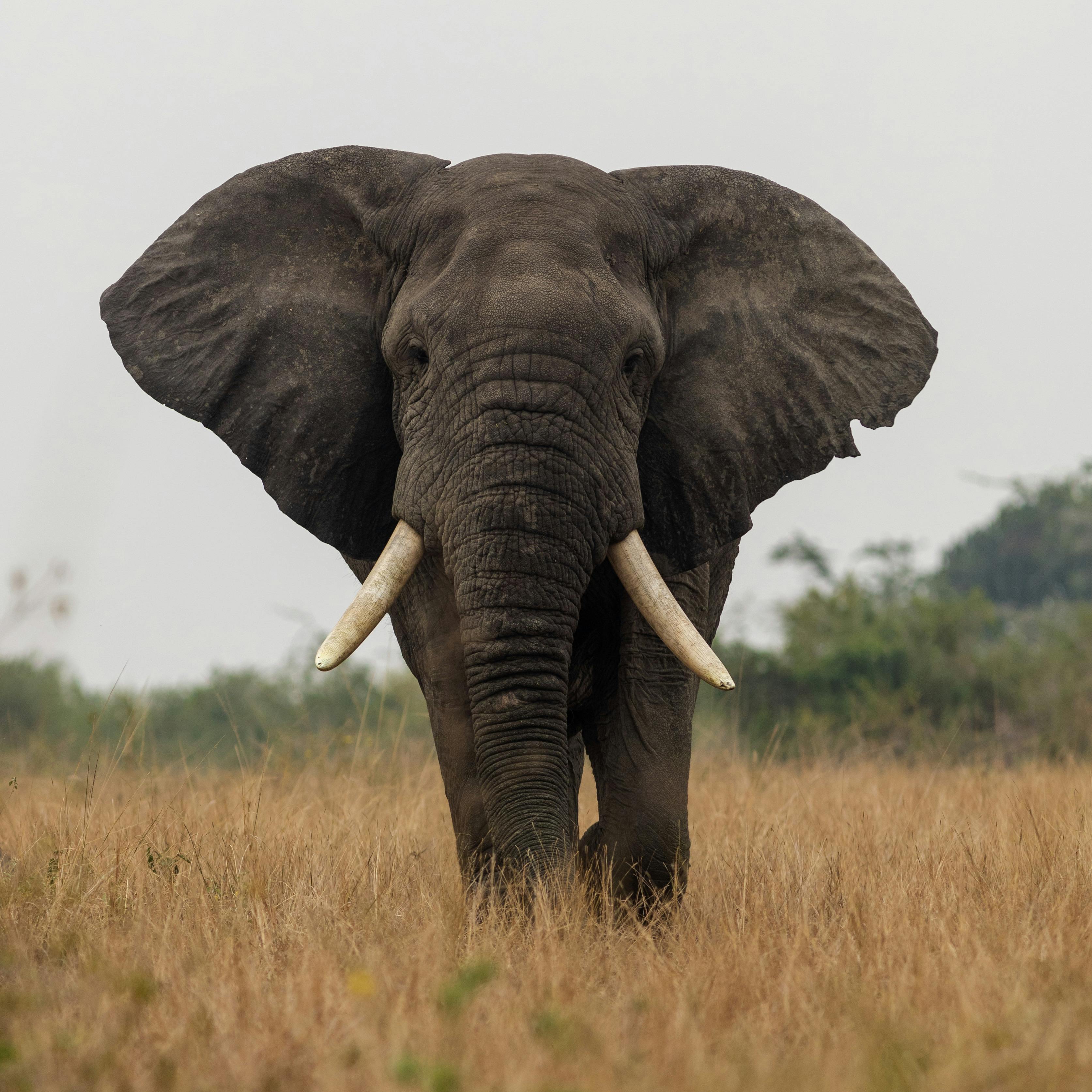
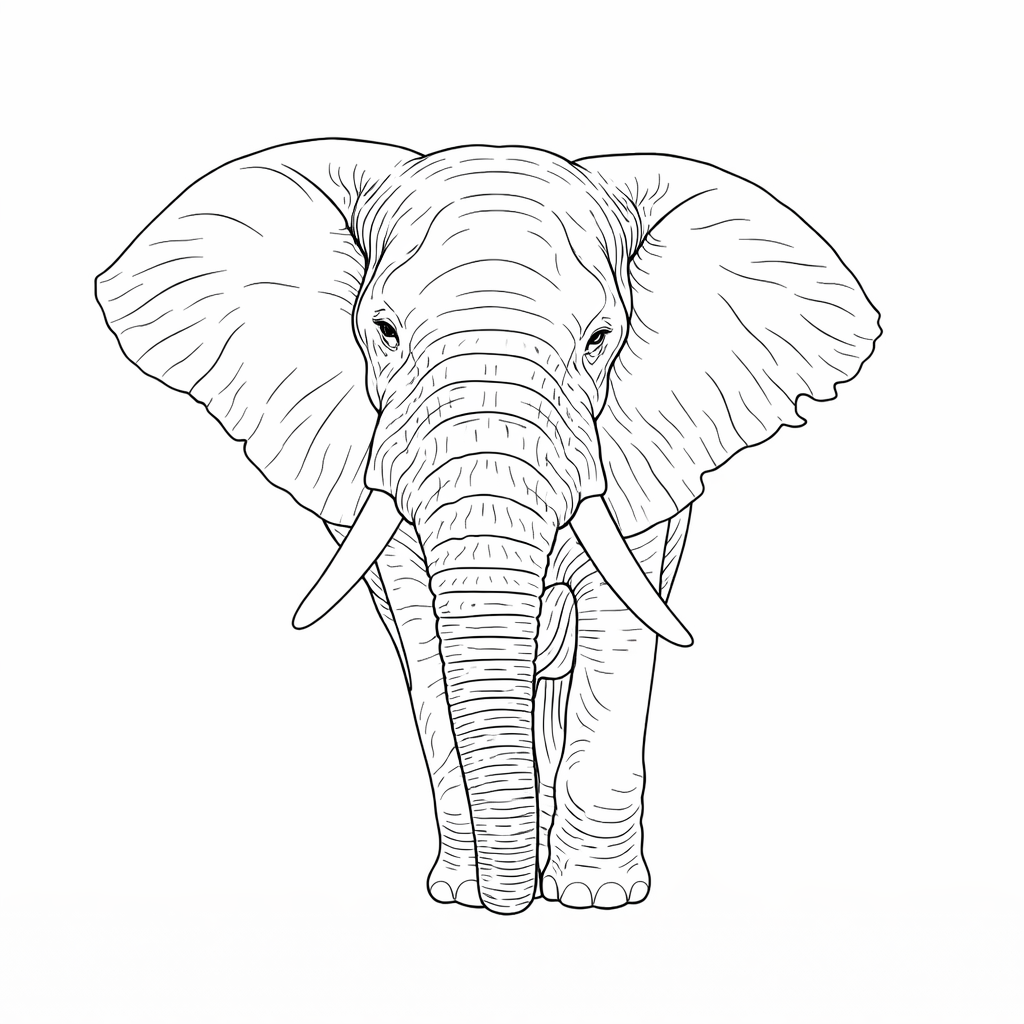
- 입력
- One clear photo
- 출력
- Black-and-white printable outline
- 다음에 가장 적합
- Pets, family photos, objects, and worksheets
Original photo / Coloring page
See the change before you generate
Drag the divider to compare the original photo with a clean printable coloring-page treatment.
Original photoColoring pageA focused photo-to-coloring-page workflow
Keep the subject recognizable
The style preset asks the model to preserve the main subject while removing color and distracting texture.
Adjust the level of detail
Edit the starter prompt when you want simpler outlines for young children or more structure for detailed coloring.
Choose the final frame
Use the existing model and aspect-ratio controls when the printable page needs a particular canvas shape.
How to make a coloring page from a photo
The preset removes the blank-page problem, while the existing ImageStyle workspace keeps the creative direction and output settings editable.
- 1
Upload one clear photo
Front-facing subjects, pets, objects, and photos with clear contrast are easiest to turn into readable outlines.
- 2
Review the starter direction
The coloring-page prompt is prefilled for you. Keep it as-is or edit the line weight, detail, and background instructions.
- 3
Generate and compare
Review the generated page next to the original photo, then download it or refine the prompt for another pass.
What to check before printing
- Clear subjects work best
- Photos with a well-defined subject and visible contrast usually produce cleaner outlines than crowded or low-light images.
- Fine details may change
- Small textures, text, hands, and background objects can be simplified. Inspect the full-size result before printing.
- Use source material you can share
- Only upload photos and references that you are allowed to use for your intended personal, educational, or commercial project.
Photo to coloring page FAQ
- Can I turn any photo into a coloring page?
- You can try portraits, pets, family photos, landscapes, and objects. Clear subjects with good contrast usually produce the easiest pages to color.
- Do I need to write a prompt?
- No. The coloring-page preset starts with an editable prompt for you. You can generate with it as-is or customize the detail and line instructions.
- Can I make simpler outlines for children?
- Yes. Edit the prompt to ask for bold, simple outlines and fewer interior details. The result should still be reviewed before printing.
- What happens to my uploaded photo?
- The image is uploaded to the same reference-image workflow used by the ImageStyle generator. Review the current privacy and storage terms before using sensitive material.
업데이트됨:
Workflow source: Current ImageStyle reference-image generator.