사진 컬러화
흑백 사진에 자연스러운 색을 더하세요.
흑백 사진을 올리고 원본 디테일은 유지하면서 자연스럽고 시대에 맞는 색을 더하는 프리셋으로 시작하세요.
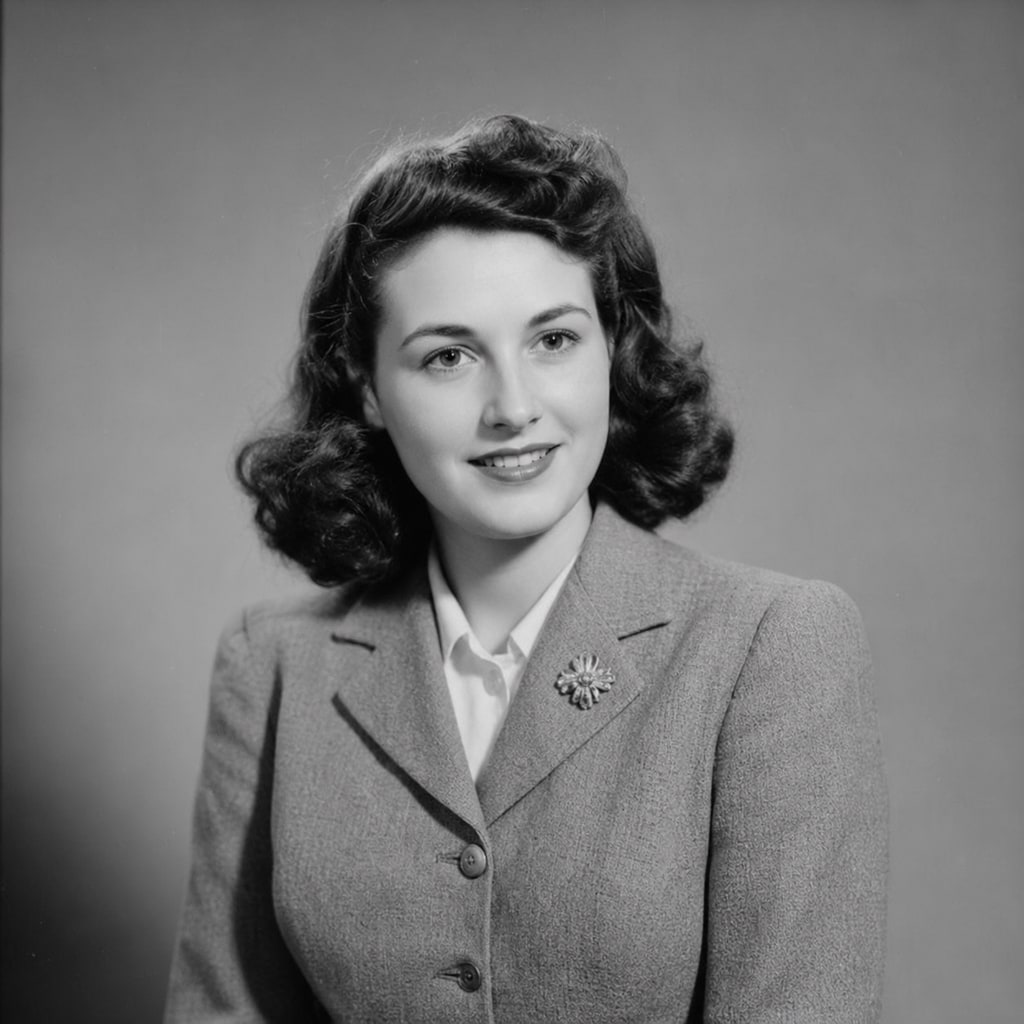
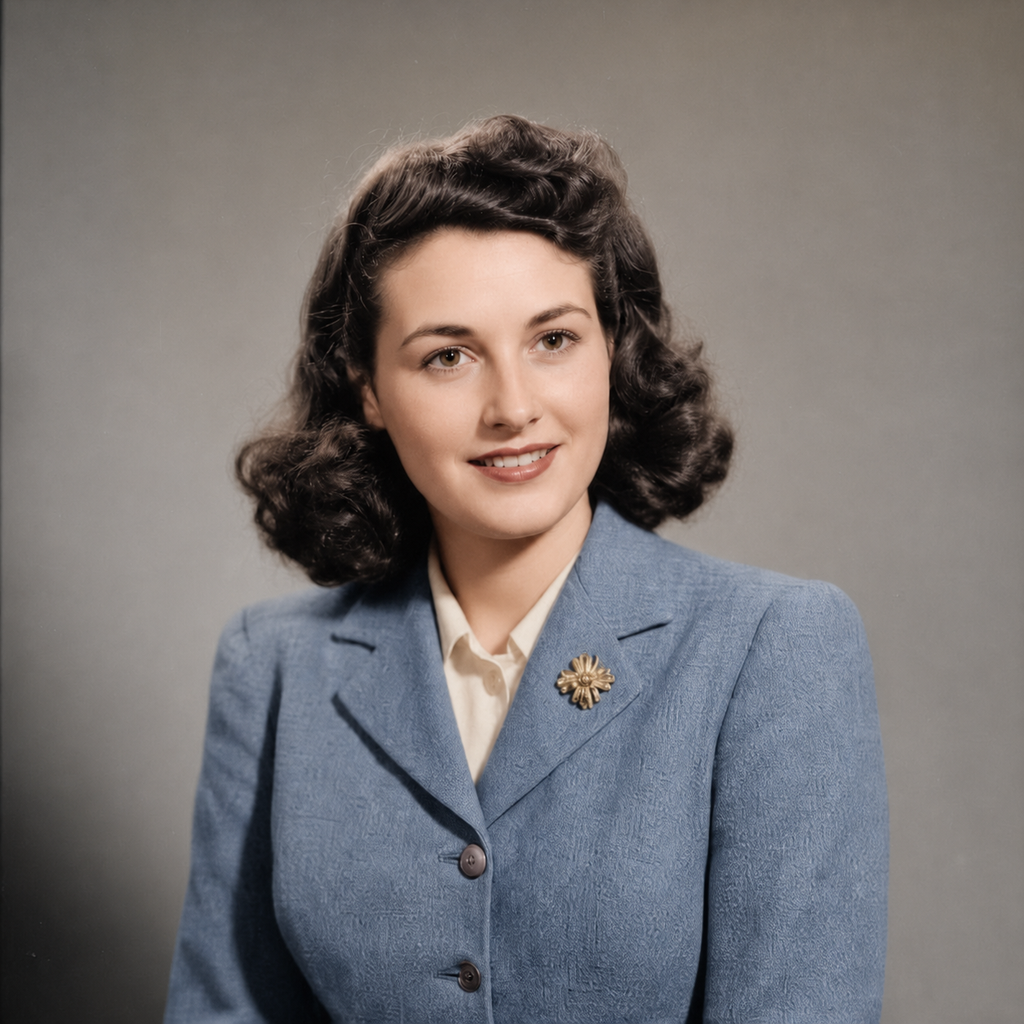
- 입력
- One black-and-white photo
- 출력
- The same photo with natural color
- 다음에 가장 적합
- Family archives and historical images
Black-and-white photo / Colorized photo
See the color before you generate
Drag the divider to compare the black-and-white original with its colorized version.
Black-and-white photoColorized photoA focused photo-colorization workflow
Keep every detail intact
The preset changes color only. Composition, faces, and texture stay exactly as shot.
Choose a natural or vivid grade
Edit the prompt for muted archival color or a warmer, richer look.
Compare against the source
Use the reference-image comparison to confirm no detail was redrawn before downloading.
How to colorize a photo
The preset supplies the colorization direction while the ImageStyle workspace keeps the prompt and output settings editable.
- 1
Upload a clean monochrome photo
Sharp scans colorize better than blurry or low-contrast copies.
- 2
Review the colorize prompt
The natural-color direction is prefilled. Keep it, or ask for warmer or more muted tones.
- 3
Generate and compare
Inspect the color version beside the original, then refine or download the result.
What to inspect in the colorized photo
- Colors are educated guesses
- The original carries no color information, so fabric and eye colors are plausible reconstructions, not facts.
- Skin tones need a check
- Review faces closely and regenerate with a tone hint in the prompt if needed.
- Use photos you have the right to colorize
- Only upload photos that you are allowed to modify for the intended use.
Photo colorization FAQ
- Will it change the details of my photo?
- No. The preset adds color only and keeps the original grain, composition, and faces untouched.
- Do I need to write a prompt?
- No. The colorization direction is prefilled and editable. Generate as-is or describe known colors first.
- Can I specify what color something should be?
- Yes. Edit the prompt with hints like a navy uniform or a red brick facade and the preset will follow them.
- What happens to my uploaded photo?
- The image is uploaded to the same reference-image workflow used by the ImageStyle generator. Review the current privacy and storage terms before using sensitive material.
업데이트됨:
Workflow source: Current ImageStyle reference-image generator.